What needs you
See which Sessions need you, follow what the agent reports, and keep your list tidy.
Every Session in the sidebar shows a status beside its name, so you can tell which agents are working, which have finished and which need you without opening each one. Run several Sessions at once and step in only where you’re needed.
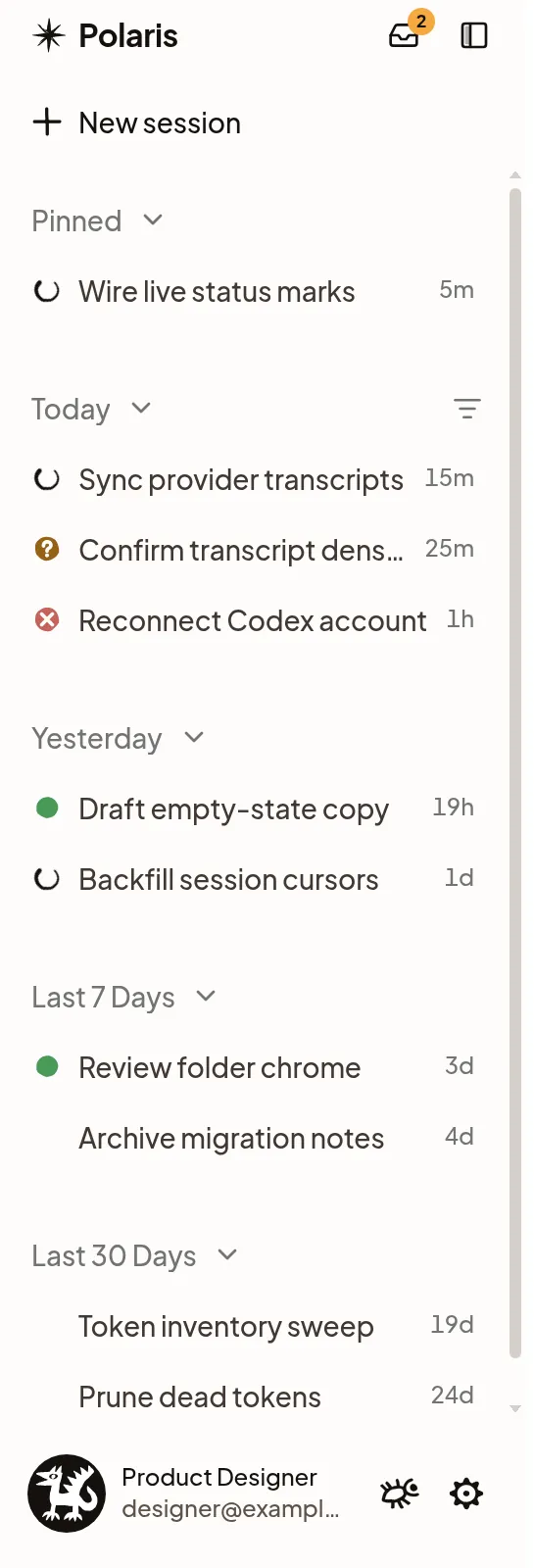
Read the statuses
- Working: the agent is working, or one of its subagents still is.
- Needs you: the agent asked a question or wants an approval, or something waits for you to act. Opening the Session doesn’t clear it; answering or acting does.
- Waiting on Maya: in a shared Session, the agent waits on a teammate, here Maya, not on you. Only one person gets Needs you for a Session; see who the agent waits on.
- Failed: something went wrong, such as a Turn that ended in an error or a Machine that’s gone. Open the Session to see what happened and what to do next.
- Finished: the agent finished while you were away, or you marked the Session unread to come back to it. Opening the Session clears it. If the agent replied but its subagents are still working, its status shows that work continues and says how many subagents are still working.
- Idle: nothing new and nothing waiting.
Grouped by status, the sidebar lists Needs you and Failed Sessions under Needs you, Finished ones under Finished, and ones waiting on a teammate under Working. Filtering by Working finds them too. The Needs you view, and the counts on it and on Sessions, include only what waits on you.
Rows hold still while you use the list, so the Session you’re about to choose stays where you saw it. The Session you have open keeps its place until you open another, and the rest move once your pointer and keyboard leave the list. Status marks and titles still change right away, and a Session that stops matching your filters stays until you leave the list. When you pin, snooze or archive a Session, or undo one of those, it moves right away.
To change the mark or colour of each status, including Waiting, open Settings → Appearance.
See where you’re mentioned
When a teammate mentions you with @ in a message, the Session joins your
list, and its row shows a small @ in place of its time. The @ stays
until you open the Session, or mark it read. It isn’t a status: the agent may
still be working, finished or waiting on someone else.
A mention also notifies you.
Go to the next one that needs you
- Needs you view, the inbox button at the top of the sidebar, lists the Sessions that need you, oldest first, then Finished: work you haven’t read yet. Select it again to go back to your usual list.
- In a Session, a chip such as 3 need you · Next above the composer opens the next one, in the same order. Mark read & next marks the Session you’re reading as read and moves on.
Follow the agent’s Updates
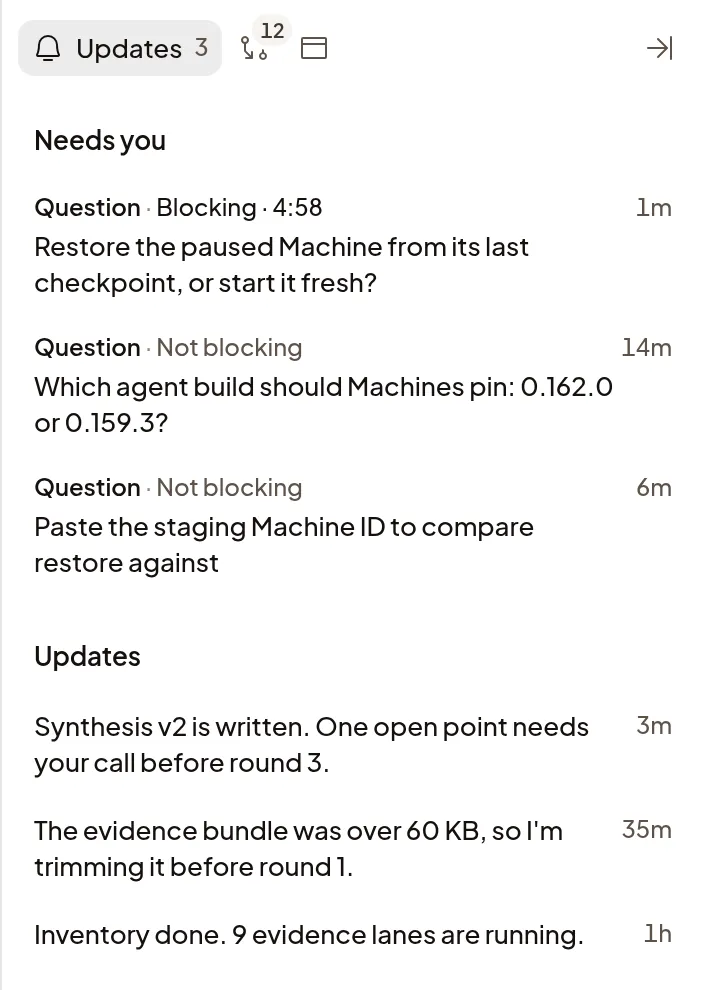
On long work, the agent can post a short Update without stopping: a milestone, a result worth opening, or a change of plan. Updates never interrupt you or send a notification. You can ask the agent for them.
Open the Updates tab beside the Session to read them, newest first, and select one to jump to it in the transcript. The same tab lists everything in the Session that waits on you, under Needs you.
Keep your list tidy
Open a Session’s actions with More on its row in the sidebar, with Session actions beside the open Session’s name, or from the keyboard with Cmd+K (Ctrl+K on Windows and Linux) under This session, which has all of these except Rename session.
- Rename session replaces the title Polaris gave it. It’s in the sidebar row’s menu; you can also double-click the open Session’s name, or ask the agent to rename it. A subagent’s row in the sidebar has no Rename session; open it and use Session actions beside its name instead.
- Pin session keeps it in Pinned at the top of the sidebar.
- Mark as unread shows it as Finished so you come back to it.
- Mute session: no notifications unless it needs you, and it no longer shows Finished when it’s done.
- Snooze hides it until a time you pick, such as Tomorrow or Until the agent replies. The agent keeps working, and questions still reach you. Snoozed Sessions wait in Snoozed near the end of the sidebar.
- Archive session takes it and its subagents out of your list. Select Undo to bring it straight back, or show archived Sessions with the sidebar’s filters and choose Unarchive session.
Read state, mute and snooze are yours alone: they change nothing for teammates who share the Session.
Arrange the list
Your list starts with Sessions you’re involved in. To browse all the Sessions you can open in your organization, choose List options → Filter → Show → Everyone’s sessions. Choose a person’s name under Show to see Sessions they created, or Your sessions to return. Switching between Your sessions and Everyone’s sessions keeps your attention counts the same: they include only work waiting on you.
Open List options, the filter button above your Sessions:
- Sort by Recent activity, Created or Priority.
- Filter by which Sessions to show, their status, whether they’re unread or archived, when it was updated, or its repository, organization or Machine.
- Group by Last updated, Status, Repository or None. Collapse all and Expand all fold or open every group.
- Property visibility picks what each row shows, such as Agent or Subagents, and Compact view keeps each row to one line.
- Reset puts every option back.
Your choices follow your account to every device.
If a status looks wrong
- Needs you doesn’t clear: open the Session’s Updates tab to see what’s waiting, then answer or act on it.
- Failed: open the Session and follow the action shown with the failure.
- A Session is missing: look in Snoozed, select Reset in List options, or find it with Search, which also finds archived Sessions.