Notifications
Get notified on your computer or phone when an agent needs you, fails or finishes.
Polaris can notify you on your computer or phone when an agent asks you something, a Turn fails, or the work is done. Start a long task, step away, and come back when it matters. Everything Polaris told you about also stays in the Notifications panel inside the app.
Turn notifications on
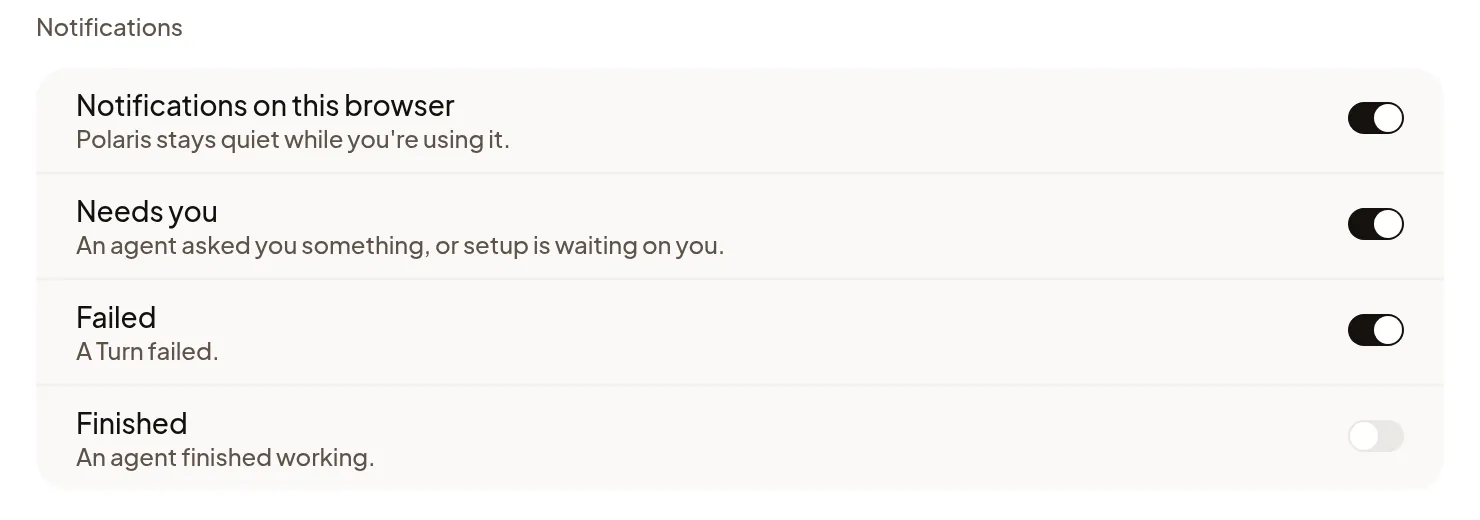
Notifications are off until you turn them on, and each browser has its own switch:
- Open Settings → General.
- Under Notifications, turn on Notifications on this browser.
- Allow notifications when your browser asks.
On Android, use Chrome. On iPhone and iPad, notifications work only in Polaris opened from your Home Screen; see Use Polaris on your phone.
Turn notifications on in every browser and on every phone where you want them. Signing out turns them off on that browser.
What notifies you
Pick the reasons you want, on each browser. All three are on until you turn one off:
- Needs you: an agent asked you something, a teammate mentioned you, a message is waiting for an agent account, or setup is waiting on you.
- Failed: a Turn failed.
- Finished: an agent finished working.
Polaris stays quiet while you’re using it: nothing arrives while a Polaris tab or the Home Screen app is in front. A notification shows the Session’s title and the reason, never the conversation. A mention shows who mentioned you, such as Andreas mentioned you, not their message. Select it to open the Session.
You’re notified about Sessions where you’re the person the agent is answering, even when someone else owns the Session. Your Sessions’ check-ins and automations notify you unless a teammate has since sent a message or steered the agent. Watching a Session doesn’t notify you unless someone mentions you; if you read the Session before the notification goes out, it doesn’t arrive. When messages wait because one of your organization’s shared agent accounts needs signing in again, its Owners and Admins also get Reconnect this organization’s Claude Code account (or Pi), with how many Sessions are waiting. Subagents report to the agent that started them instead, and the agent’s Updates never notify you. A muted or snoozed Session notifies you only when it needs you or someone mentions you; see What needs you.
Look back in the Notifications panel
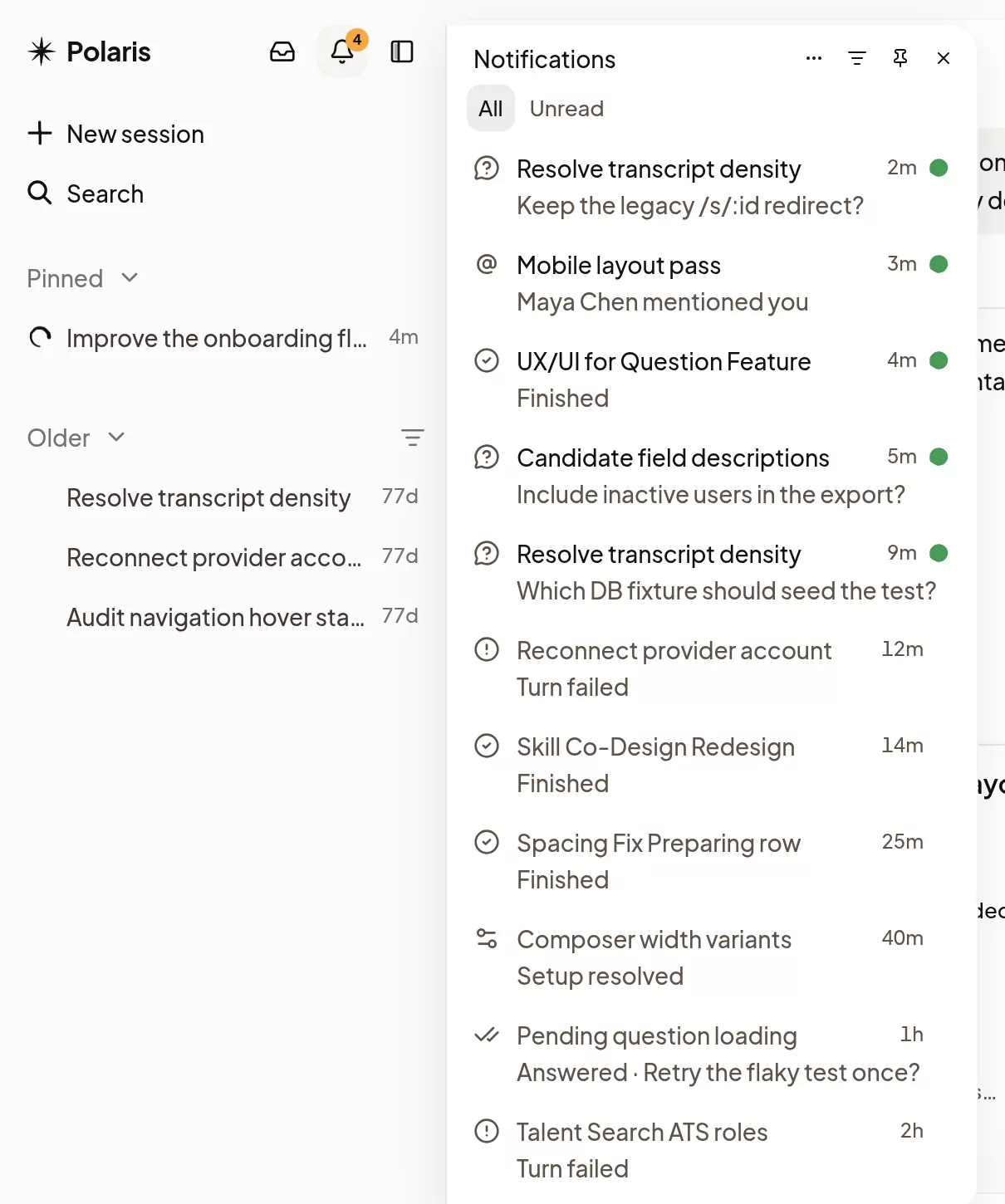
Select the bell at the top of the sidebar to see what Polaris told you about, newest first, whether or not notifications are on. The panel follows the same rule about who is notified. On a phone, the bell is at the top of the menu.
- Select an entry to open its Session at the question, the failure or the message that mentioned you.
- Switch between Unread and All, or narrow it with Filter by type.
- Mark all as read is in the panel’s More actions menu.
- On a computer, select Pin beside the sidebar to keep it open next to your Sessions.
The bell’s badge counts unread entries that need you or report a failure.
If notifications don’t arrive
- Couldn’t turn on notifications for this browser.: select Try again.
- Notifications stopped reaching this browser.: select Reconnect.
- Your browser blocks notifications from Polaris. Allow them in its site settings.: allow them there, then turn Notifications on this browser on again.
- Still nothing: check that Do Not Disturb or Focus is off, and that your device allows notifications from your browser or from Polaris on your Home Screen.