Quickstart
Go from an invitation to your first finished task.
This tutorial takes you from your invitation to a first finished task. You sign in, connect a repository and an agent account, hand the agent a task, and review what it did. Polaris walks you through the first steps the first time you sign in, so most of this is following along.
You need a GitHub account with a repository on it. For the agents, you need a Claude subscription or an Anthropic API key for Claude Code, a ChatGPT subscription or an OpenAI API key for Codex, or both, unless your team already shares an agent account with you.
1. Sign in
Polaris is invite-only during the beta. Open your invitation:
- A beta invite link: select Continue. Each link works once.
- A team invitation: sign in with the GitHub account whose verified email address the invitation was sent to.
Polaris then shows how agents use your GitHub account. Select Continue to GitHub and approve Polaris. Agents push branches and open pull requests under your name, and they can’t do more than your GitHub account can.
No invitation yet? Open plrs.sh and select Request access. The Polaris team replies by email.
2. Connect repositories
Setup asks Just you or a team? Choose Just me to work on your own, or My team to create an organization you can invite teammates to.
- Select Install on GitHub. On GitHub, choose where to install the Polaris GitHub App and select the repositories agents can work in. Agents reach only those.
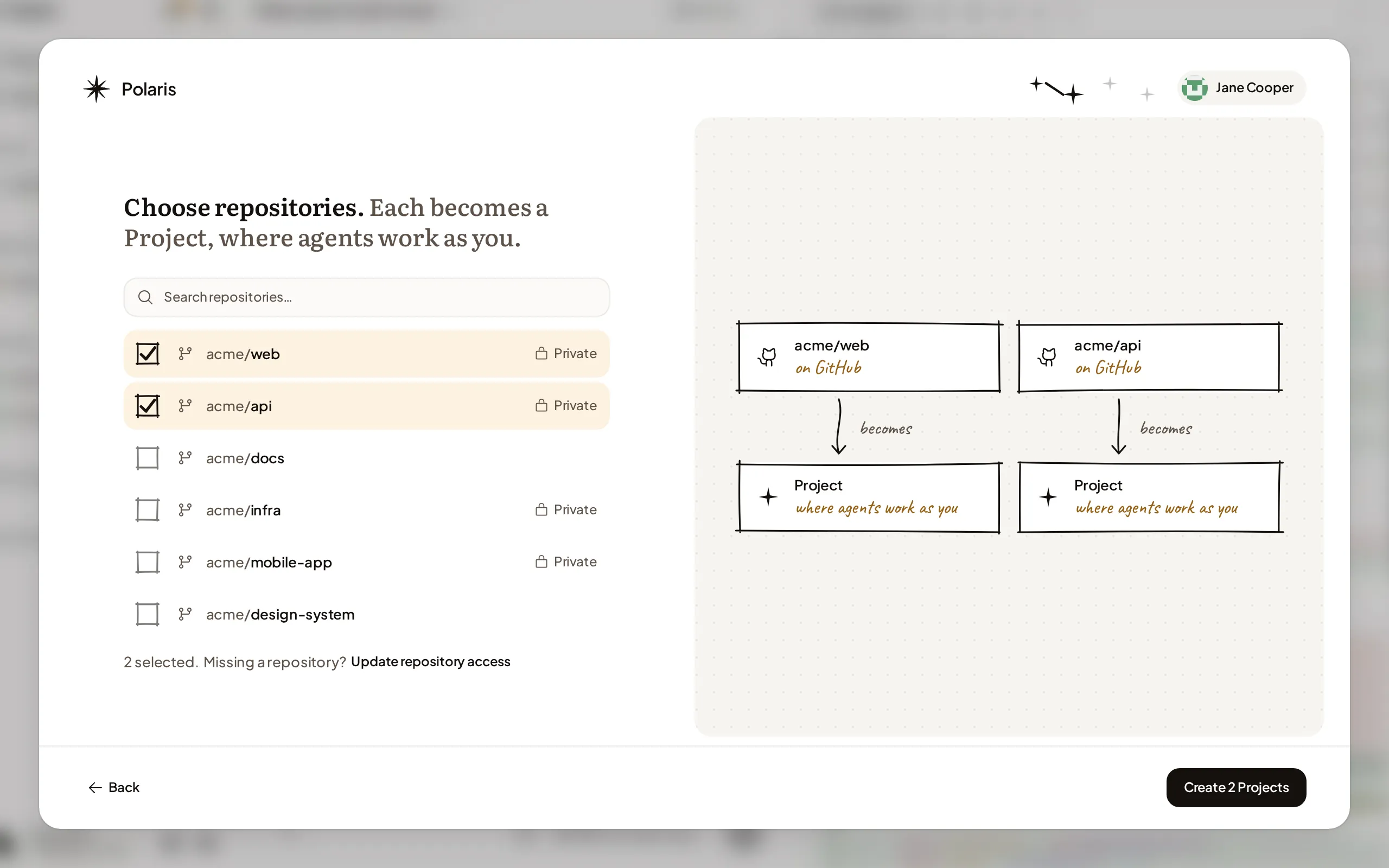
- Under Choose repositories, pick one or more. Each becomes a Project, and every Session you start in it gets a copy of the code.
- Select Create Project, or Create 2 Projects if you picked two. If setup can’t create one of them, it says which and why. When trying again can help, select the button again; it tries only those.
If you joined a team, its owners connect repositories for it, so setup skips this step.
3. Connect Claude Code, Codex or both
Each agent runs on an account you connect, and its usage counts against that account. Setup shows Claude Code and Codex side by side. Select Connect on one and choose how:
- Claude Code: choose Claude subscription, select Continue to Claude and sign in, then paste the authorization code Claude shows and select Connect account. Or choose Anthropic API key, paste a key and select Connect; Polaris checks the key with Anthropic before it saves it.
- Codex: choose ChatGPT subscription and follow the steps on screen to sign in to ChatGPT with a code. Or choose OpenAI API key, paste a key and select Connect.
When an agent shows connected, connect the other one the same way, or select Continue. Each Session can run on either agent you connected. To add more accounts or connect Pi, open Agent accounts later.
4. Give the agent a task
Setup says You’re set up and offers three starter tasks: Fix a small bug, Add tests where they matter and Tour this codebase, which changes no files. Pick one and select Start task.
Above the tasks, In shows the Project the task runs in, and Runs on shows the agent, model and reasoning effort. Setup picks a model and effort for each agent; select one to change it. You choose the agent only when you connected more than one, and the Project only when you have more than one.
Prepare the Project’s Workspace setup is on by default. While your first task runs, an agent writes each Project’s Workspace setup in its own Session, on the same agent and model, and opens a pull request for you to review. Merge it and new Machines start with your tools and dependencies installed. Turn the option off to skip it. Team members don’t see it.
To write your own task, select Start without a task and describe the work. The Workspace setup option applies here too.
The Session opens right away. Polaris prepares a Machine, then the agent starts working. You can close the tab or your laptop now; the agent keeps going. To hear when it finishes or has a question, turn on notifications.
5. Review the work
The Session shows what the agent says and does as it works. Send a message at any time to add a detail or change course; see Talk to the agent. Open Changes to read the diff and comment on lines, or Preview to try the app the agent is running.
When the agent opens a pull request, Polaris links it to the Session, and it appears with its status in Artifacts under Pull requests. Select Open on GitHub to review and merge it. To ask for more, reply in the same Session.
That’s your first finished task. When the agent is done, its Machine goes to sleep, and your next message wakes it with your files in place.
If sign-in or setup stops with a message, see Troubleshooting.
Next steps
- Workspace setup: have every new Machine start with your tools and dependencies installed.
- Agent instructions: tell agents how your team builds, tests and ships.
- Variables and secrets: give agents the settings and secrets your code needs.