Search
Find any Session by its name or by what was said in it, act on any Session without opening it, and open a setting or run an action from the keyboard.
Search finds any Session you can open, by its name or by something said in it, and takes you straight there. Use it to get back to earlier work without scrolling the sidebar, to find the Session where an error or a decision came up, to snooze, mute or mark a Session, or to open a page of Settings or run an action without the mouse.
Open Search
Press Cmd+K (Ctrl+K on Windows and Linux) anywhere in Polaris, even while you type in the composer, or select Search in the sidebar. On a phone, open the menu and tap the search button at its top. Press the same keys again, or Esc, to close it.
Before you type, Search lists the Sessions that need you under Needs you, then your most recent ones under Recent. With a Session open, its own actions come first, under This session. Move with ↑ and ↓ and press Enter to open a Session or run an action.
Use the tabs to narrow Search. All shows everything that matches what you type; before you type, it shows the Session you have open, Sessions that need you, recent ones and New session. This session shows actions for the Session you have open; Sessions shows Sessions; Commands lists every available command; Settings lists Settings pages. This session appears only while a Session is open. Search always opens on All, and switching tabs keeps your text.
Press Tab or Shift+Tab to change tabs. With an empty search box, ← and → also change tabs. On a phone, tap a tab or scroll the tabs sideways. On a computer, the footer shows the keys: Tab to change scope, Cmd+Return for a selected Session’s actions, and Esc to close Search, or go back from choices.
Find a Session
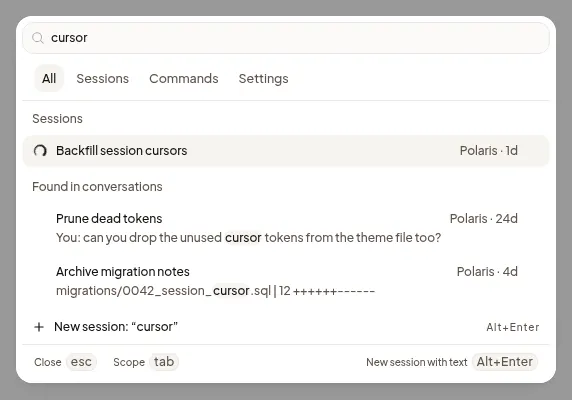
Start typing. Results come in groups:
- Sessions: every Session whose name, Project or organization has all the words you typed. Archived Sessions and ones the sidebar’s filters hide are found too; an archive mark shows which are archived.
- Found in conversations: Sessions where your words were said, each with the line that matched. You: marks something you wrote and Agent: the agent’s reply. Search also looks through what teammates wrote in Sessions shared with you, and the agent’s commands, output and diffs, in every organization you belong to.
Select a result under Found in conversations to open the Session at that message. A Session appears only once, so one that already matched by name isn’t repeated.
Search matches the start of words once you’ve typed three letters, so a word you haven’t finished typing still finds results, and it finds parts of long names in code. For a very common word, it shows the most recently active Sessions that say it. When no Session has every word, it shows Sessions with some of them and says No session has every word. Showing sessions with some of them.
Act on the Session you have open
With a Session open, choose This session to list what you can do to it without the mouse. These actions also appear under This session on All. They include most of the Session’s sidebar menu; rename a Session from its name instead.
- Snooze lists its choices in place, such as Tomorrow or Until I unsnooze it. Press Backspace in the empty search box, or Esc, to go back. See What needs you for what each action does.
- Mark as unread or Mark as read, Pin session, Mute session, Copy link to session and Archive session.
- Find in transcript, Focus composer, Change model and effort and Show changes, with their shortcuts, where the Session shows them. Change model and effort shows the current model and effort; Show changes shows how many files changed, if any have.
The This session tab also lists the Session’s other commands, such as Copy transcript as Markdown, Jump to latest while you’re scrolled up through earlier activity, and Show updates and the Session’s other side panel tabs. On All, type to find them. A subagent’s Session has This session too, with the commands it offers.
Type to narrow the list: mute leaves Mute session. After Snooze, Mark as unread, Pin session, Mute session or Copy link to session, focus goes back to what had it, such as the composer.
Act on any Session without opening it
On a computer, select a Session in the results and press Cmd+Return (Ctrl+Enter on Windows and Linux), or select the ⋯ at the end of its row. Search lists that Session’s actions in place, with its name in the search box: Open, then most of its sidebar menu, such as Snooze, Mark as unread, Pin session, Mute session, Copy link to session and Archive session. Rename a Session from its name instead. Search doesn’t open the Session you act on. Press Backspace in the empty search box, or Esc, to go back to your search.
On a phone, use the Session’s menu in the sidebar instead.
Open a setting or run an action
- Choose Settings to browse Settings pages, or type a page’s name on All, such as Agent accounts, and select it to go straight there.
- Choose Commands to browse available commands, or type an action’s name on All, such as Stop agent or Interact with Desktop. On a computer, an action with a shortcut shows it. After it runs, Search reminds you of its keys with Next time, press …. See Keyboard shortcuts.
- Choose Theme, then System, Light or Dark. Current marks your saved choice.
- Report a bug opens the support form. Open Polaris docs opens the documentation in a new tab. Open notifications opens your notifications.
- To start a Session with your search text, choose New session: “…” at the end of the results, or press Option+Enter (Alt+Enter on Windows and Linux). Start opens with the text in its composer, ready for you to edit and send.
If it doesn’t work
- No results in Sessions. (or another tab): try fewer words, or choose All to search every tab.
- Conversations could not be searched. Keep typing to try again.: matches by name still show; type another letter to search conversations again.
- A Session you’re looking for is missing: Search lists only Sessions you can open. Ask its owner to share it with you.