Agents and accounts
Choose Codex, Claude Code or Pi, and connect the subscription or API key it runs on.
Polaris runs three coding agents, and each one runs on an account you connect: a subscription you already pay for, or an API key. Usage counts against your own plan or credit, so connect an account for each agent before you start a Session with it, unless your organization shares one with you. Setup connects Claude Code, Codex or both the first time you sign in; see the Quickstart.
| Agent | Use it for | Connect |
|---|---|---|
| Codex | OpenAI’s models | A ChatGPT subscription or an OpenAI API key |
| Claude Code | Anthropic’s Claude models | A Claude subscription or an Anthropic API key |
| Pi | Models from the connected service | A ChatGPT subscription, or an API key for a supported service below |
Pi accepts API keys for Anthropic, OpenAI, OpenRouter, Google Gemini, Particle, DeepSeek, Fireworks, Baseten, xAI, Vercel AI Gateway, Kimi API, Groq, Cerebras, Mistral and Together. Choose the service that issued your key.
Particle-1 is also available in Pi through an OpenRouter account. Choose OpenRouter · Particle-1 in the model picker.
A subscription runs within its plan’s limits. An API key bills your credit with that service. Codex and Claude Code also get your agent instructions and MCP servers; Pi Sessions don’t.
Connect an account
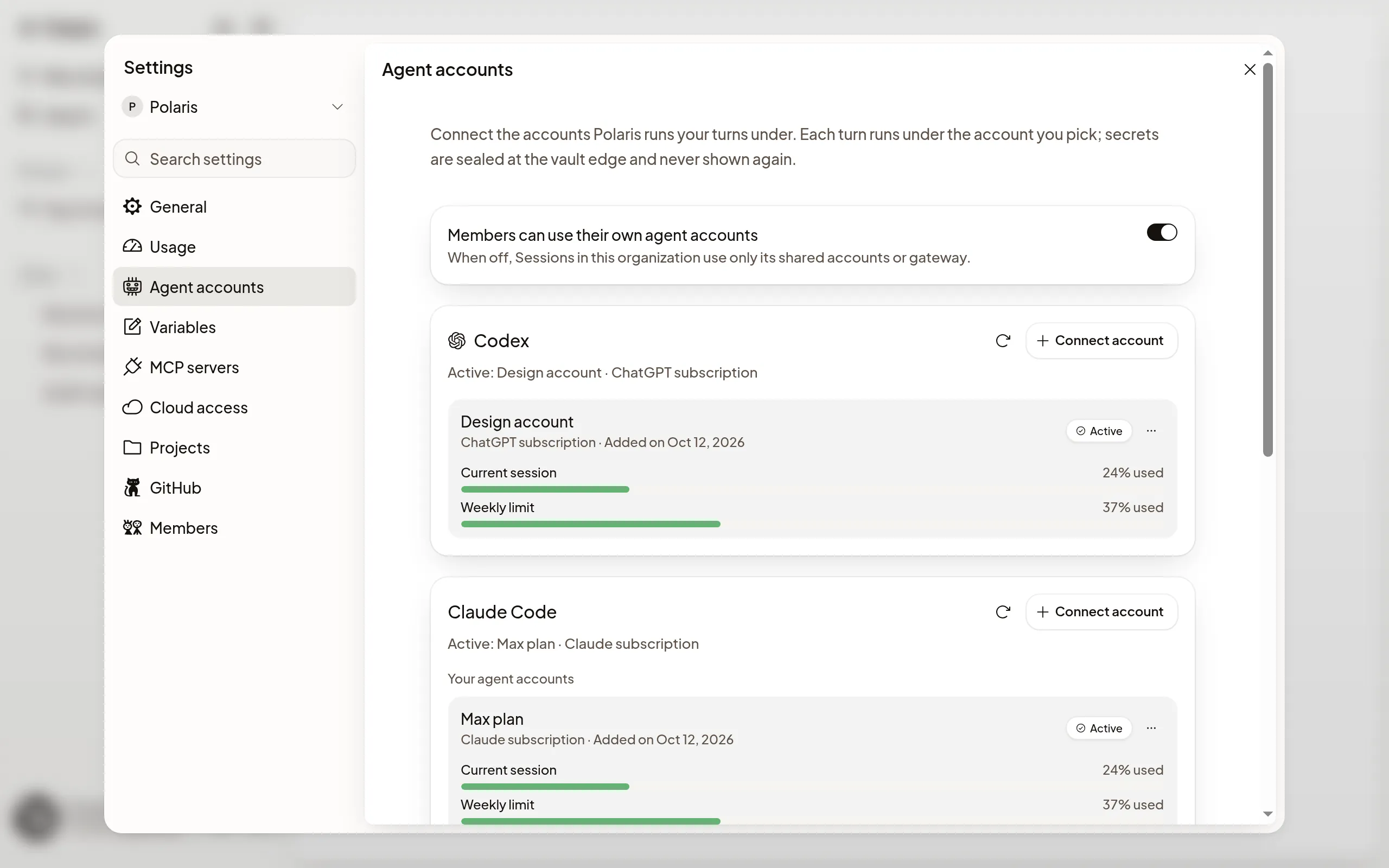
- Open Settings, choose your organization at the top (Personal if you work alone), then open Agent accounts.
- On the agent’s card, choose Connect account, then a subscription or an API key. For Pi, type in Search services to find a service by name.
- Sign in to the service when the dialog asks, or paste the key and choose Connect.
- Name the account and choose Done.
The account works in every organization you belong to, and Settings → Your account → Your agent accounts lists them all. An account that works in only one organization offers Move to your agent accounts in its menu, so it works everywhere. Polaris never shows a saved key again. To stop using one, choose Remove account in its menu; revoke the key with the service too if you want it gone everywhere.
Choose the active account
Each agent has one active account in each organization, and your Sessions run on it. The card names it, for example Active: Work · Claude subscription. To switch, choose Use for Claude Code (or Use for Codex, Use for Pi) on another account. The change applies from your next message.
If your organization’s Codex source is set to Your gateway, every Codex Turn in it goes through that gateway instead of anyone’s connected accounts, so switching Codex accounts there changes nothing. An Owner or Admin sets the source on the Agent accounts page.
When you reach a usage limit
Each ChatGPT and Claude subscription shows how much of its plan you’ve used on its row. With two or more subscriptions for Codex or Claude Code, Switch accounts at usage limits is on: when your active account runs out, Polaris makes the account with the most usage left active and continues the task for you. Your own accounts switch only to your own, and shared accounts only to other shared ones.
If no account has usage left, the Session shows Claude Code usage limit reached (or Codex). Choose Switch Claude Code account to continue on another account, or continue once the limit resets.
Share accounts with your organization
Owners and Admins can connect a Claude Code or Pi account for everyone: under Who can use it, choose Everyone in your organization, such as Everyone in Acme. Members can make it their active account without ever seeing its key.
To keep everyone on the organization’s accounts, an Owner or Admin turns off Members can use their own agent accounts at the top of Agent accounts. Members then see Acme uses its own agent accounts. where they would connect one, and a message that would use a member’s own account waits until they choose one of the organization’s.
If it doesn’t work
-
This Machine can’t send this message with the current settings: edit your message or choose another model in the Session’s model picker. If neither helps, choose Contact support. Your message was not sent. For This Machine is too old for this service or model, start a new Session from the same repository to use a new Machine. Your message was not sent. Keep any changes you need by committing and pushing them first.
-
Needs reconnect: the sign-in expired or the service rejected the key. Choose Reconnect on the account and sign in again, or paste a new key and choose Connect. If a task stopped because of it, Polaris continues it once you reconnect or choose another account.
-
No Claude Code account is connected. in a Session: choose Connect Claude Code. Your message is saved and sends as soon as the account works.
-
Turn on device code sign-in for Codex: in ChatGPT, open Settings → Security and turn it on. In a ChatGPT workspace, an admin does this.
For anything else, see Troubleshooting.