Files
Browse, open, preview and download the files in your repository on the agent's Machine.
Files lets you browse everything in the agent’s checkout and open any file beside the Session, without cloning the repository. Use it to read code the agent mentions, look at a screenshot or report it made, or download something it produced.
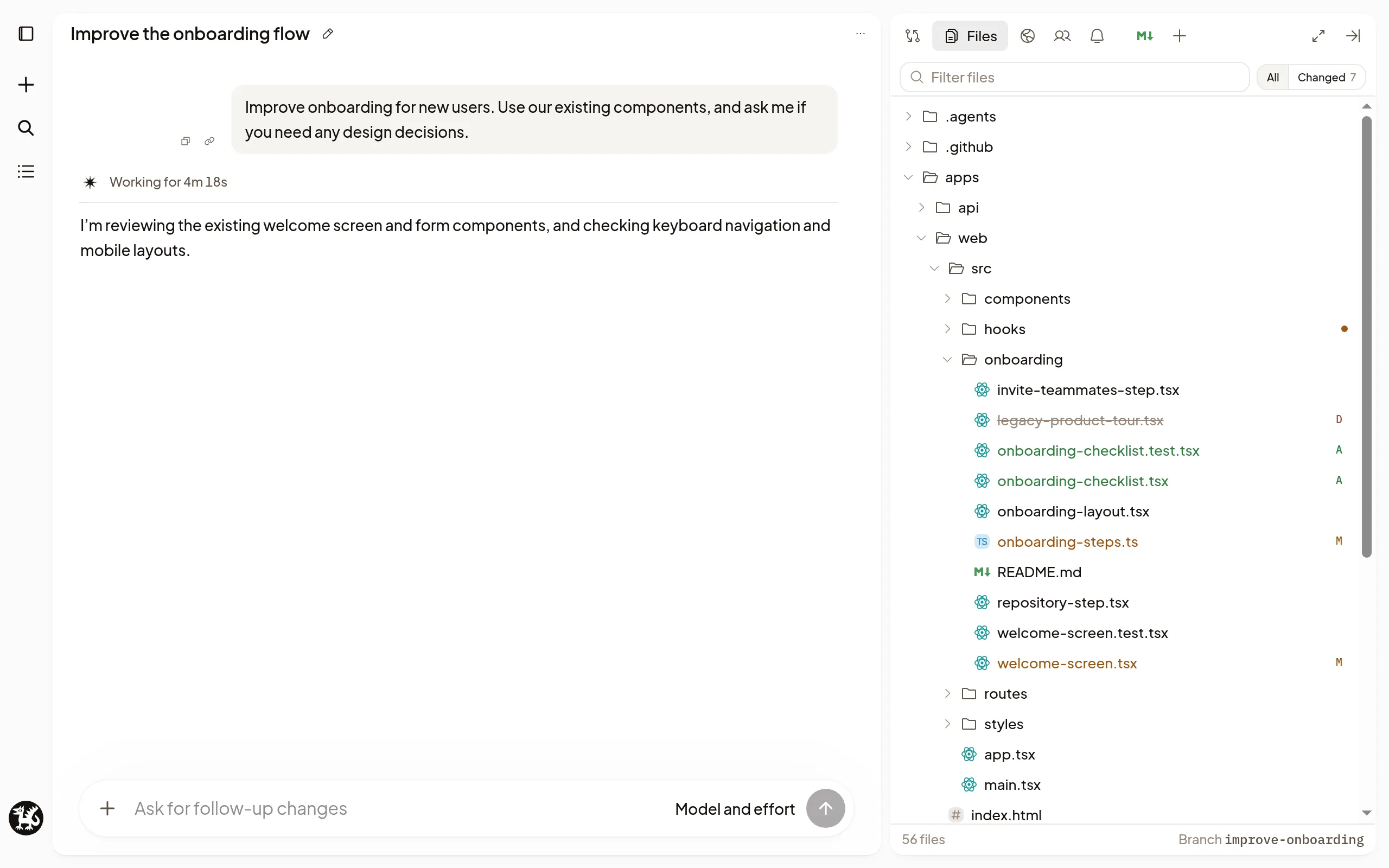
Browse and open files
Select Files in the Session’s right sidebar.
- All shows the whole checkout; Changed shows only the files in the current Changes comparison.
- Type in Filter files to find a file by name or path.
- Select a file to open it in a tab. It updates as the agent edits it.
Reloading or returning to a Session restores its open file tabs, selected tab, source or preview choice, and reading positions in this browser. Each browser tab keeps its own place. Signing out or clearing browser data removes it.
Go to a file by name
Press ⌘+P (Ctrl+P on Windows and Linux), or select Go to file: on a computer it’s under + in the sidebar’s tab row, and on a phone it’s in the tab row. Before you type, it suggests files Changed on this branch, Recently opened and Linked in this Session. Type part of a name and press Enter to open it.
To point the agent at the file instead, press ⌘+Enter (Ctrl+Enter). Polaris adds it to the message you’re writing without sending it.
Open files from the transcript
When the agent names a file in its reply, select the name to open it. That
works for a link, a path such as docs/plan.md, and a file name written as
code, such as package.json. A file name opens the file with that name at the
top of the repository. A name with an extension, such as checkout.ts, also
opens the only file anywhere with that name. A path with a line, such as
src/app.ts:40, opens the file at that line and highlights it.
A file name that several folders share, with none at the top, stays plain text. Use Go to file to pick the one you mean.
Preview what’s inside
File tabs show more than code:
- Markdown as a formatted document. Select Show source for the text.
- CSV and TSV files as tables.
- Notebooks with their saved outputs. Opening one doesn’t run it.
- Images, videos, PDFs and audio, ready to view or play.
File tabs are read-only. To change a file, ask the agent, or edit it yourself in a terminal.
Copy or download a file
Above an open file, Copy path copies its path, Copy file contents copies its text, and Download saves it to your computer. Wrap lines wraps long lines, here and in Changes.
If it doesn’t work
-
Machine is asleep: Files, Go to file and the composer’s
@list keep working from the Machine’s last saved file list, in any tab or device, with its age, such as “Machine is asleep · showing files from 12 min ago”. Polaris saves the list while the Machine is awake: when it wakes, when you look at files and when a Turn ends. Searching it never wakes the Machine. Changed keeps the last Changes. To open a file, select Wake machine, and it opens when the Machine is ready.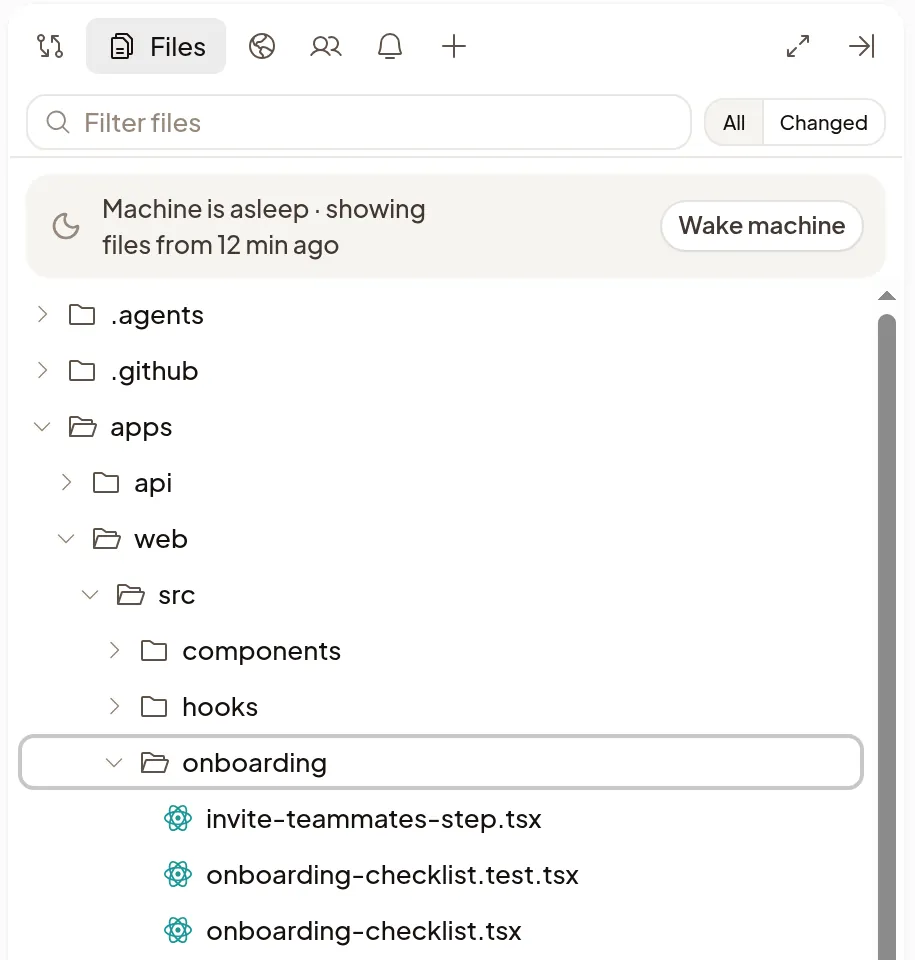
- Until a Machine’s list is first saved, Files shows Wake machine instead. After a Machine is replaced, its old list is hidden until the new Machine saves one.
- In a very large repository the saved list can be incomplete, like the awake list. Folders it leaves out can’t be searched until the Machine wakes.
-
A folder’s files aren’t listed: Files, Go to file and the
@list leave out files your repository ignores, unless they’re committed. In a Git repository they also leave out the files inside a folder that is its own repository, such as a submodule or an agent’s worktree. -
File is too large to show: text files larger than 256 KB don’t display. Select Download to read it on your computer.
-
Preview unavailable: your browser can’t display this file. Select Download instead.
-
Can’t open files outside the project folder: ask the agent to copy the file into the project, or to share it with you.