Machines
The agent's own computer in the cloud, which sleeps when the work is done and wakes when you send a message.
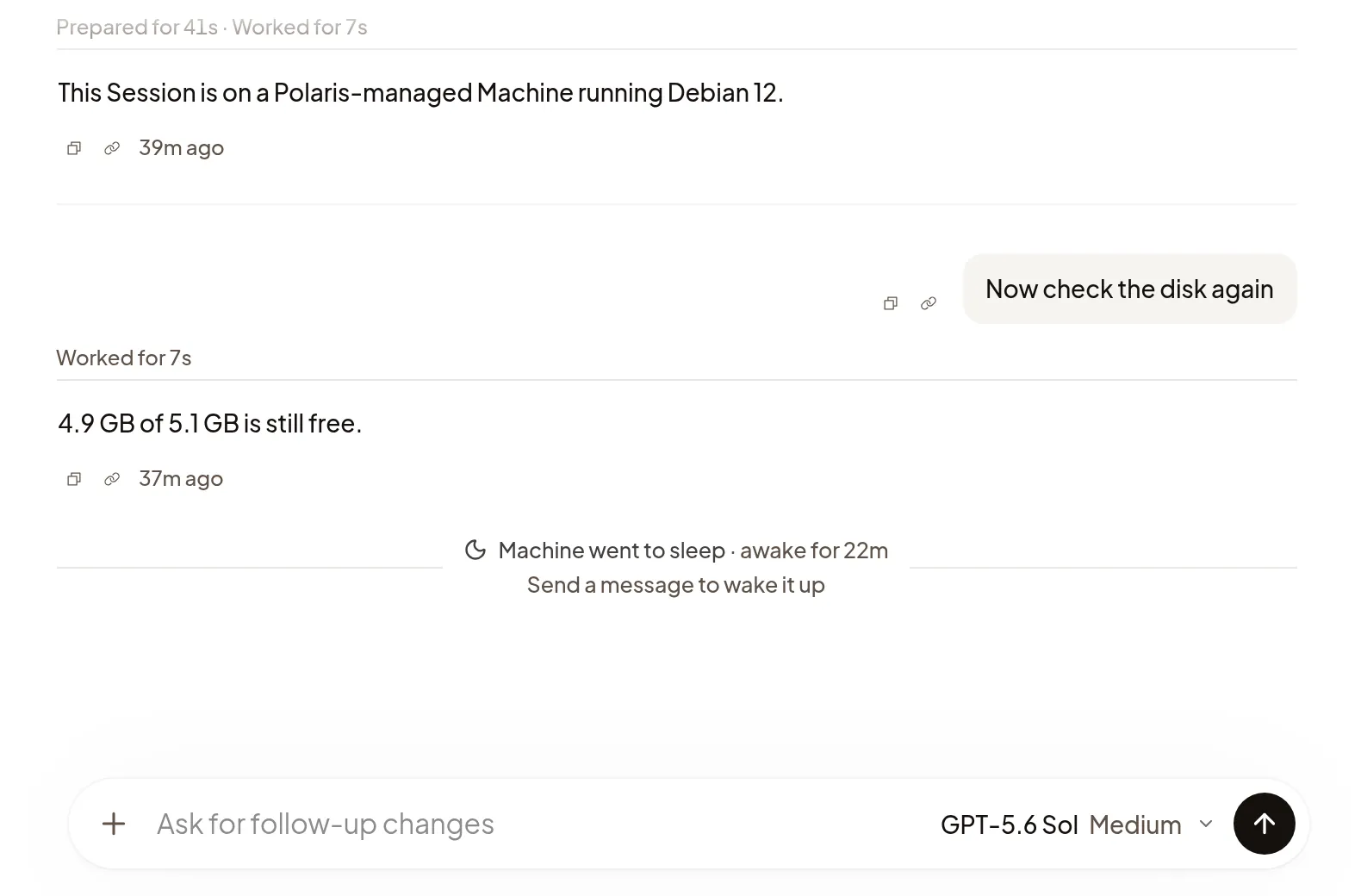
Every Session runs on a Machine: the agent’s own computer in the cloud, with your repository, your tools and a browser on it. Because the agent works there instead of on your laptop, it can install what it needs, run your app and tests, and keep going after you close your laptop. You don’t manage the Machine: Polaris starts it, puts it to sleep when the agent is done, and wakes it when you send a message.
What’s on a Machine
- Your repository, on the branch you started from, for the agent to edit, commit and push.
- The tools and dependencies that Workspace setup installs, plus anything the agent installs along the way.
- A terminal, a browser and a desktop you can open beside the Session, and its files.
- The apps the agent runs, which you can open in a Preview.
A Machine’s files, changes and Previews are visible to the people who can see its Sessions.
Choose its CPU, memory and disk
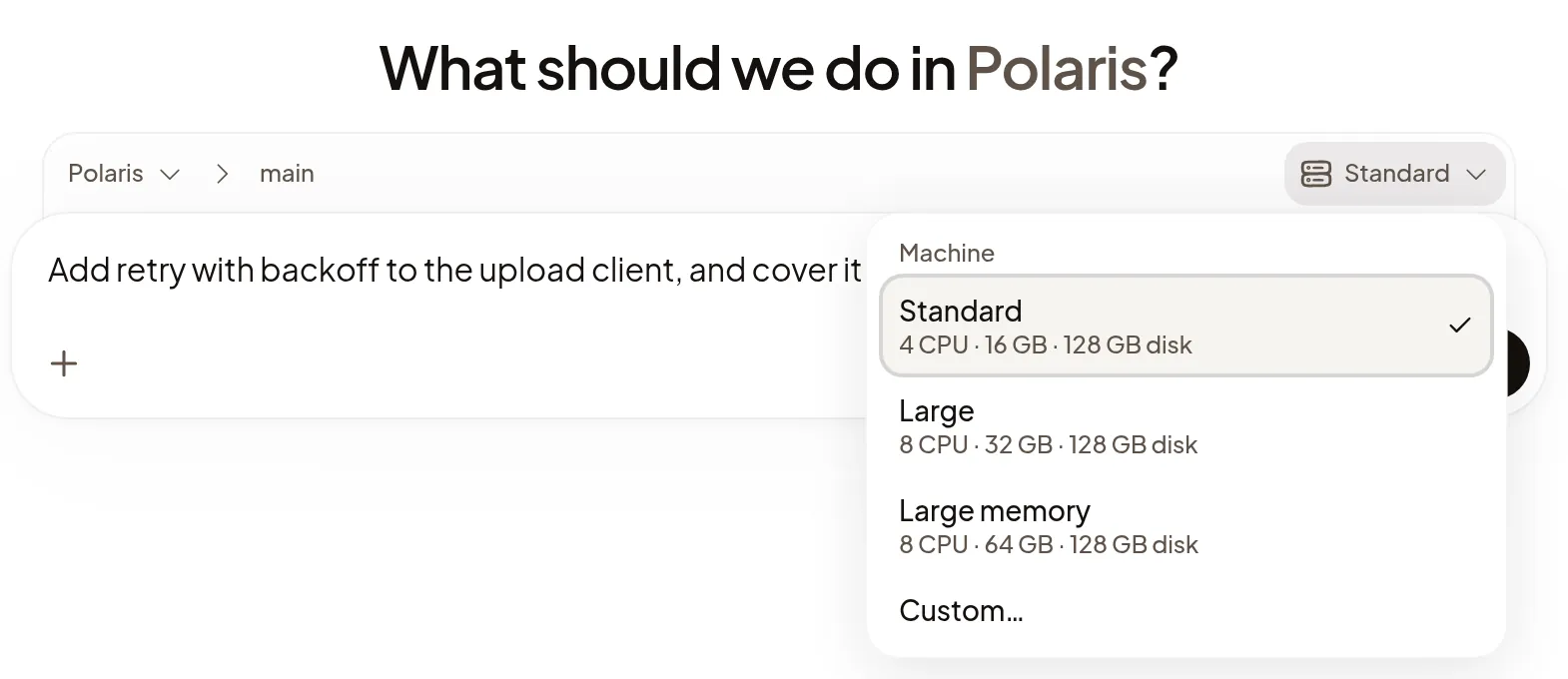
When Polaris can change a Machine’s resources, Start shows the Machine at the top right of the composer: Standard, or the Project’s default. Select it to choose a preset, each listed with its CPU, memory and disk, or Custom… to set them yourself. Custom offers only what’s available: CPU and disk show as text when they can’t change, and memory is a slider. The Machine keeps these resources until you change them.
The memory you choose is the most the Machine can use. It gets memory as it
needs it, so a tool on the Machine such as free can show less while it’s idle.
Each Project can then set a default in Project settings. When the Project’s default isn’t available, Start begins at Standard.
Change its CPU and memory
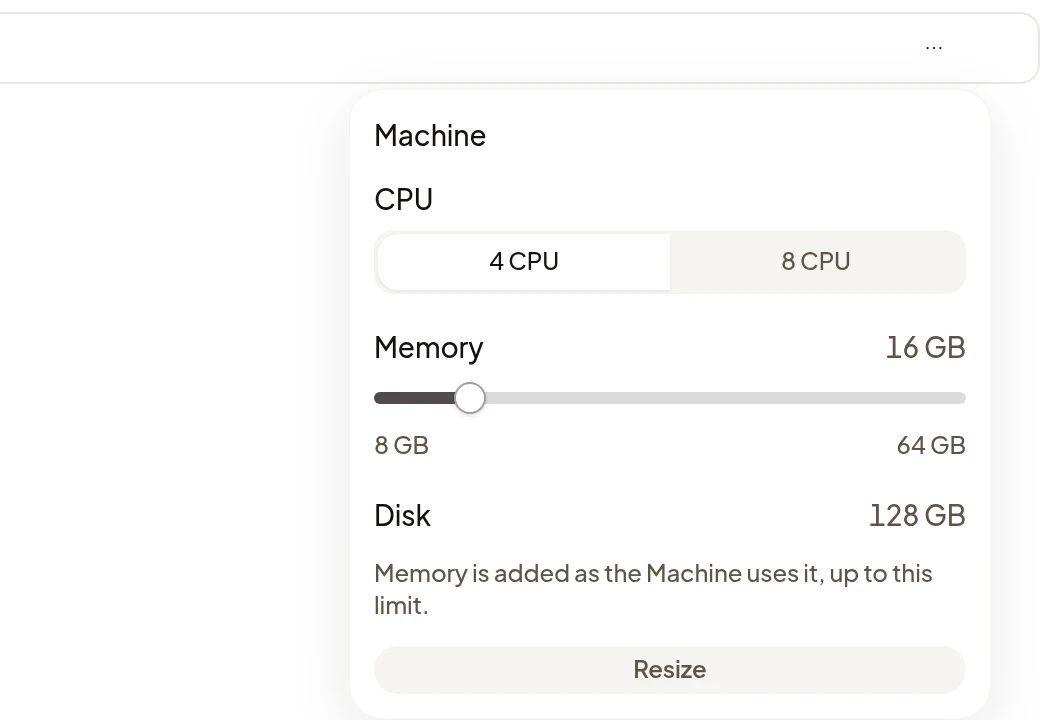
Select Resize Machine in the Session’s ⋯ menu at the top right, choose CPU and move Memory, then select Resize. The Machine usually keeps running, with its Sessions, programs and files. If it has to restart to take the change, it says so: running programs stop and files are kept.
- When the Machine is asleep, a change of CPU or more memory applies when it wakes. To lower its memory, select Wake machine first.
- Memory can go down only to a little more than the Machine is using. The Machine lowers it as far as it can and shows the memory it reached; if it can’t lower it at all, it keeps its memory and says so.
- Disk stays as it is for now.
- The agent can ask for more CPU or memory when its work needs it, such as tests that run out of memory. A question above the composer shows the resources it asks for and why. Select Resize to resize the Machine as you would from the menu, or Not now. The agent never resizes the Machine itself.
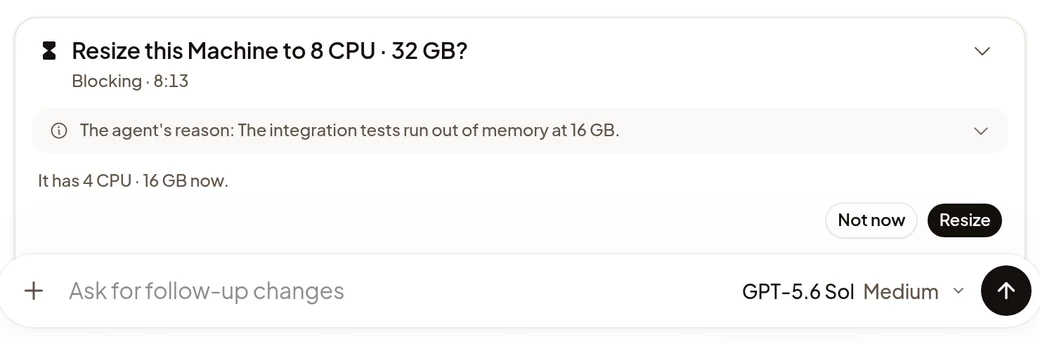
The Machine keeps its new resources when it sleeps and wakes, and new Sessions an agent starts from it get the same.
Sleep and wake
When the agent has nothing left to do, its Machine goes to sleep: about five minutes after the agent finishes, or about 15 minutes after your last click, scroll or keystroke while you have the Session open. Clicking or typing in your app in the Session’s Preview counts too, but scrolling there doesn’t, and a Preview open in its own browser tab doesn’t count at all. To keep it awake for a while without using it, see Keep it running. The transcript ends with Machine went to sleep.
To wake it, send a message; the agent picks up where it left off. Opening one of its Previews in the Session wakes it too. In a panel that needs the Machine, such as Files or Terminal, you can also select Wake machine. A check-in the agent scheduled wakes it on its own.
What survives sleep
Your files, including uncommitted changes, the tools installed on the Machine and the whole conversation are still there when it wakes. Programs the agent left running, such as a dev server, can stop. To have your app come back after a wake, see Keep it running.
Keep a long job running
The Machine stays awake while the agent works and while it waits on a command. For a job that should keep running after the agent replies, such as a long test suite or a data import, ask the agent to keep the Machine awake until it finishes.
Archiving every Session on a Machine puts it to sleep, even if a job is still running or someone kept it awake from a Preview.
Run several Sessions
Every Session you start gets its own Machine, so tasks run side by side without touching each other’s files. Start as many as you need. Subagents are the exception: they work on the same Machine as the agent that started them. To list every Session on one Machine, select List options → Filter → Machine in the sidebar.
Delete a Machine
When you no longer need a Session’s work, select Delete machine… from its row in the sidebar or the Session actions menu above the transcript, then confirm. Deleting is permanent: the Machine and everything on it are gone, and you lose access to every Session on it. Ask the agent to push anything you want to keep first.
If it doesn’t work
- Machine is asleep in a panel: select Wake machine, or send a message.
- Machine is unavailable or This machine is no longer available.: select Go to Start and start a new Session from the same repository. Work the agent pushed is safe on GitHub.
- An agent is still working on this machine. when you delete: wait for it to finish, or stop it, then delete.
- For anything else, see Troubleshooting.