Share a Session
Let teammates watch the agent work, drive it with you, or take the work over.
Share a Session to let teammates in your organization follow the agent’s work or send it messages themselves. Use it to pair on a task, get a second opinion while the agent works, or hand the whole task to someone else.
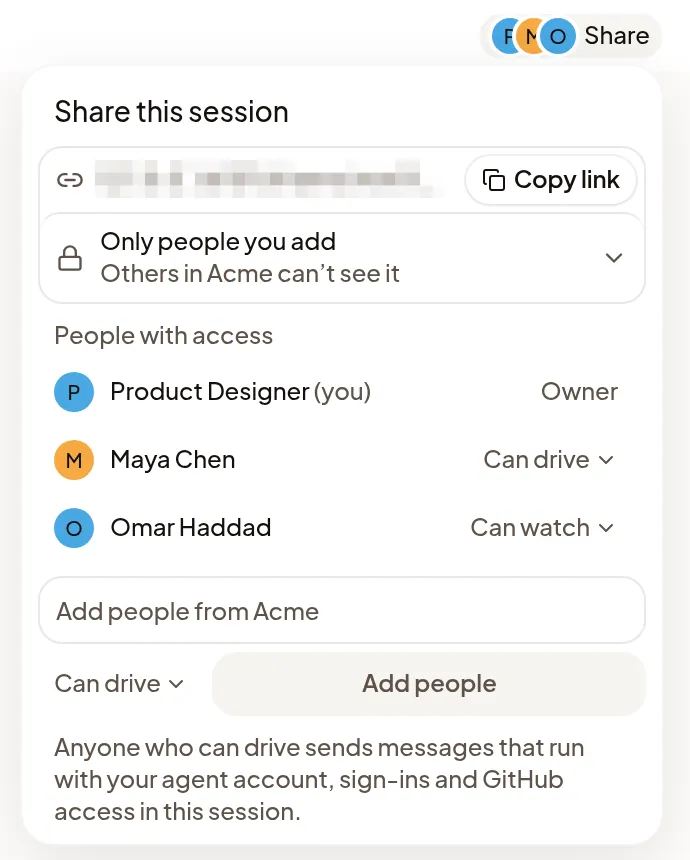
Share it
A new Session is private: only you and the people you add can use it. The organization’s Owners and Admins can also watch it. Their role alone never lets them send messages to it, rename it or archive it; you can still let one of them drive it like anyone else. Select Share in the Session header and choose who in the organization can reach it:
- Only people you add: other members don’t see it; Owners and Admins can watch.
- Everyone in your organization, Can watch: every member can follow along.
- Everyone in your organization, Can drive: every member can also send messages.
To add one person, type their name or email in Add people from your organization, pick them, choose Can watch or Can drive, and add them. Undo takes them off again right away. To change or remove someone later, open the menu on their row.
Copy link copies the Session’s address. It opens only for people who can see the Session.
Bring someone in with a mention
In your own Session, mention a teammate with
@ in a message. If they can’t open the Session yet, sending the message
shares it with them with Can watch, and they appear in Share like
anyone you added. A mention never lets anyone drive. In someone else’s Session
you can mention only people who can already open it.
What teammates can do
- Can watch: see the transcript, the Machine’s files and its Previews.
- Can drive: also send and queue messages, steer, answer the agent’s questions and stop it.
Anyone who can drive sends messages that run with your agent account, sign-ins and GitHub access, and each message shows who sent it. In your Session, they see your name where you see Share, such as Maya’s session, or on a phone Sending as Maya under the Session’s name; selecting it reminds them they’re sending as you. Only you change who has access, and the Session’s model and permissions. Subagents in the Session are shared the same way. The agent sees who wrote each message, so teammates can refer to each other by name.
If you stop someone driving, the messages they queued are cancelled. Work the agent already started finishes.
See who the agent is waiting on
When a shared Session needs someone, only one person gets Needs you: the person whose message the agent is answering. Everyone else sees Waiting on and that person’s name, such as Waiting on Maya. It stays out of their Needs you view and attention counts.
The agent waits on:
- The person who sent the newest message, including a steer. When another driver steers, the agent waits on them from then on.
- The owner when nobody sent the message it’s working on, such as a check-in it scheduled or a CI or pull request follow-up. If someone steers during that work, it waits on them.
- The owner when a message is waiting for an agent account, because the Session uses the owner’s accounts.
- The owner when the person it was answering can now only watch, or has left the organization.
Results from subagents, the agent’s background work or other Sessions don’t change who it waits on, and neither does Polaris continuing after a sign-in or usage limit. When the agent fails or finishes, everyone sees Failed or Finished as usual, but only the person it was answering gets it in their Needs you view.
Find Sessions shared with you
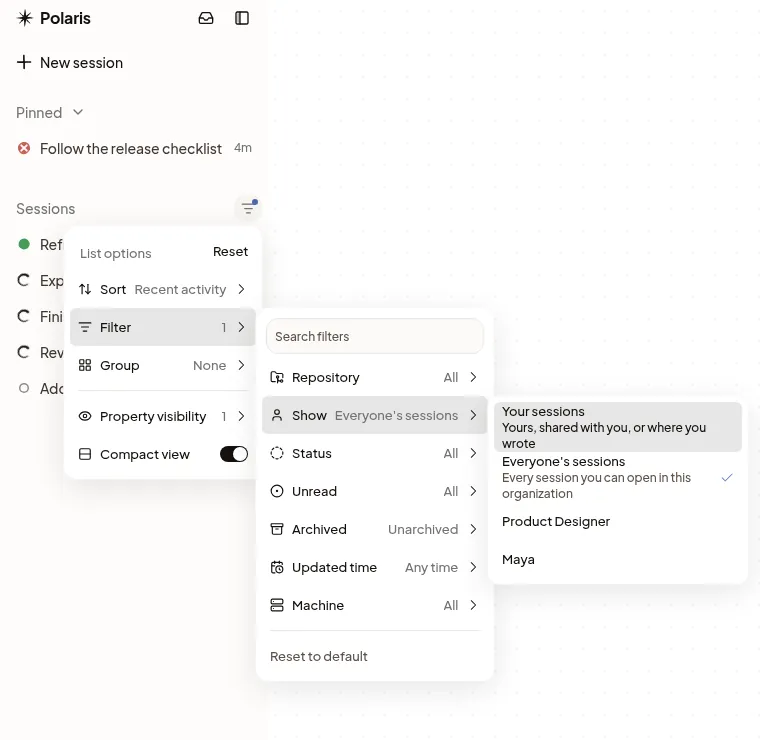
Your sidebar lists Sessions you own, ones shared with you personally, ones where you sent or queued a message or steered, ones where someone mentioned you, and ones you pinned.
To browse Sessions shared with the whole organization, open List options → Filter → Show → Everyone’s sessions. Choose a person’s name to see Sessions they created, or Your sessions to return to your usual list. Reset to default in Filter also returns to Your sessions.
Ask about a shared Session without adding to it
To ask questions about a teammate’s Session, or carry its work on, without
adding your messages to it, start your own Session and
reference theirs with @.
Hand the Machine to a teammate
When someone else should carry the work on, make them the owner:
- Add them in Share, then open the menu on their row.
- Choose Make owner… and confirm.
They now own the Machine and the Sessions you started on it, and they decide who else can see or drive these Sessions. You can still drive them.
The Machine restarts as theirs. From the next message, the agent uses their agent account, GitHub access, variables and MCP servers instead of yours; ones only you could use are gone. The restart stops the agent, terminals and Previews, along with the programs they started. Containers and other programs started outside the agent, terminals and Previews may keep running. Files, uncommitted changes, sign-ins in the Machine’s browser and Session history stay.
If sharing doesn’t work
- No Share button: if you can drive someone else’s Session, the button shows their name instead, such as Maya’s session, or on a phone Sending as Maya under the Session’s name. Otherwise the Session is in your Personal organization. Turn Personal into a team organization, or start the work in a team organization’s Project.
- Only … can change who has access: you aren’t the Session’s owner. Ask them to change it.
- An agent on this machine is still working: wait until it finishes, then choose Make owner… again.