Use Polaris on your phone
Follow your Sessions, answer the agent and send the next task from your phone.
Polaris works in your phone’s browser, so you can check on agents, answer a question or send the next task from anywhere. The agents keep working on their Machines whether your phone is open or not. Add Polaris to your Home Screen to open it like an app and get notifications.
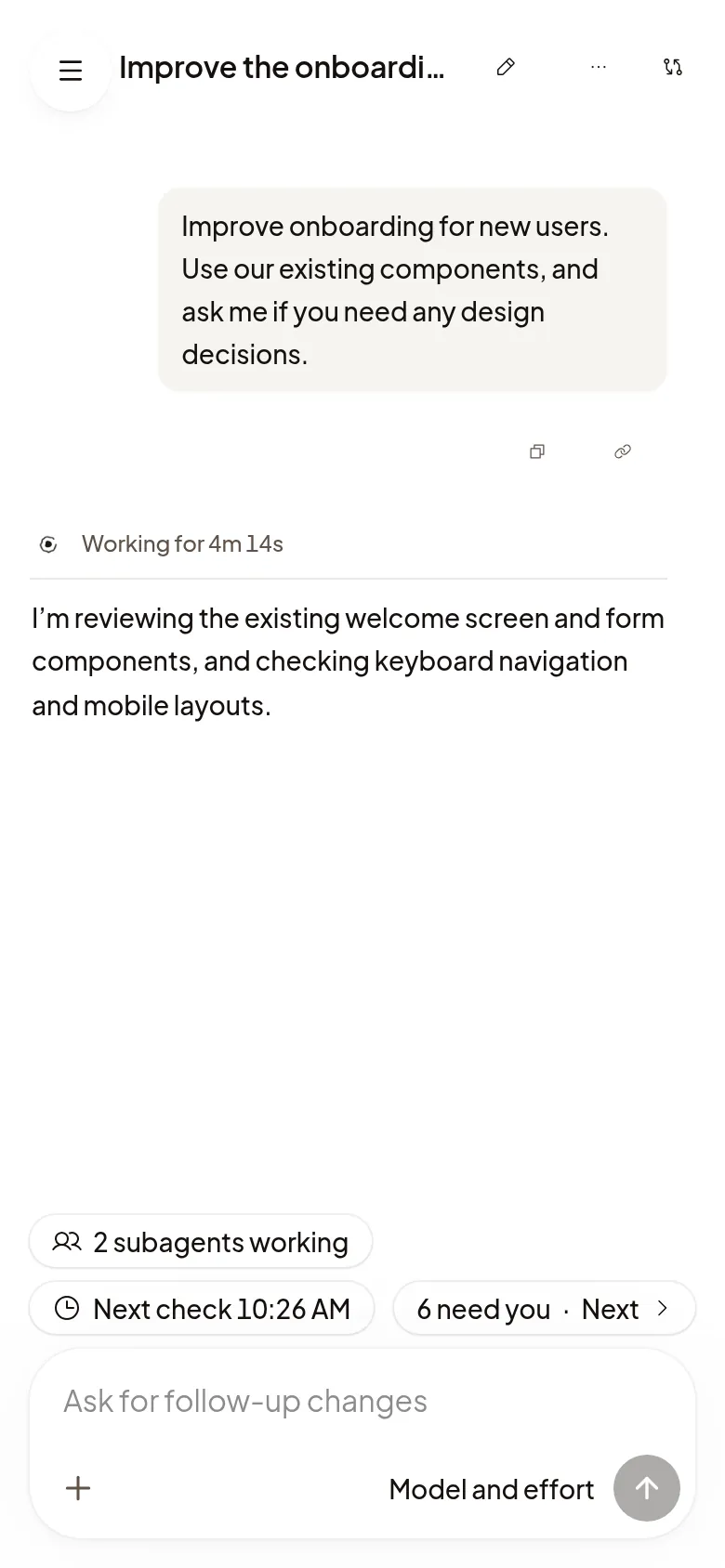
Add Polaris to your Home Screen
On iPhone or iPad:
- Open Polaris in Safari and tap Share. If you don’t see it, tap ⋯ first.
- Tap Add to Home Screen.
- Open Polaris from your Home Screen and sign in. It doesn’t share your Safari sign-in.
On Android, you can add Polaris to your Home Screen from Chrome’s menu.
Follow your Sessions
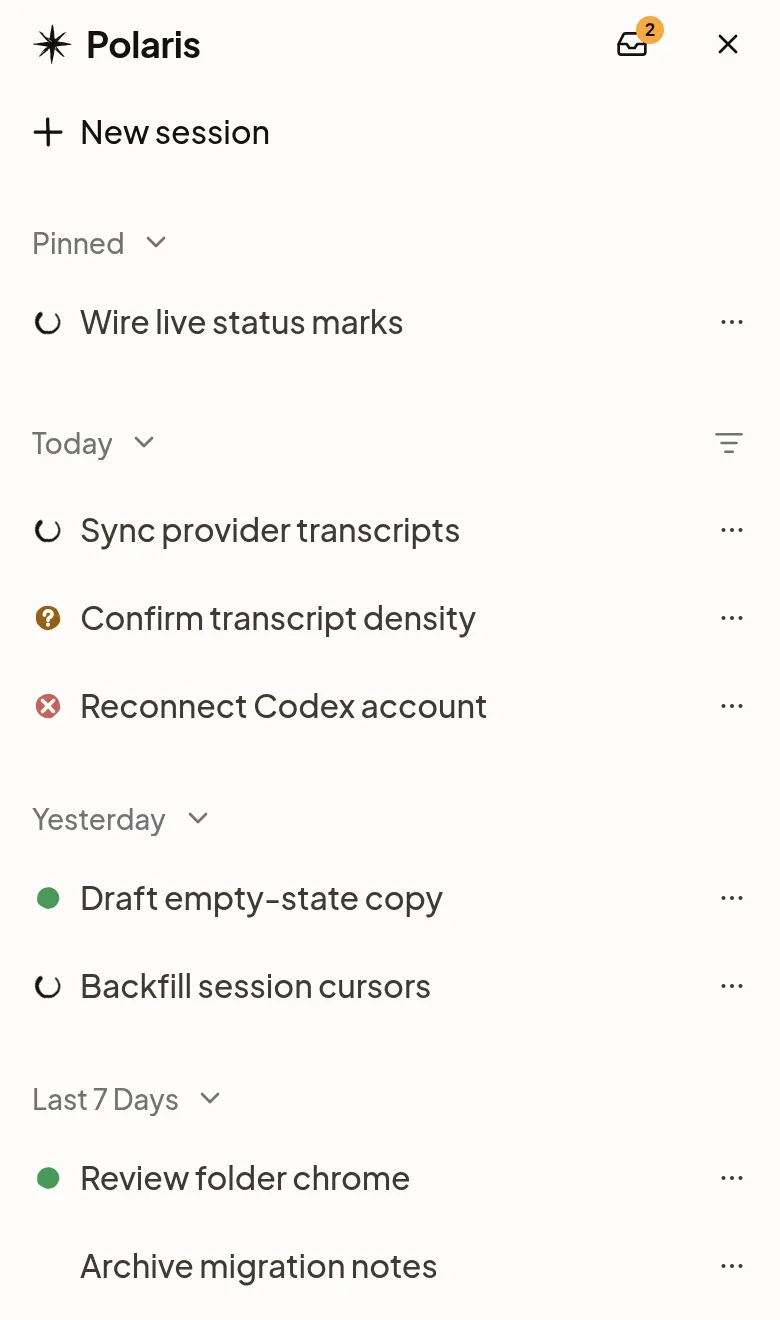
- Tap the menu button at the top left to see your Sessions and their statuses. Needs you view and the Notifications bell are at the top.
- Open a Session to read along and answer the agent’s questions where they appear.
- Tap More on a Session’s row for actions such as Snooze and Archive.
Your sidebar choices, what you’ve read, and the Sessions you muted or snoozed follow your account, so your phone shows the same list as your computer.
Steer the agent
Type or dictate in the composer to add a detail, change direction, line up the next task or stop the agent; see Talk to the agent.
Tap the panel button at the top of a Session to open Updates, Preview, Changes and the other panels in a sheet over the conversation. A subagent opens in a sheet the same way. A terminal adds a row with the keys a phone keyboard lacks, such as Esc, Tab and Ctrl.
Get notifications
Turn on notifications once on your phone: in Polaris from your Home Screen on iPhone and iPad, or in Chrome on Android. Your phone has its own switch, separate from your computer’s. See Notifications.
What’s easier on a bigger screen
- Working side by side. On a computer, a Preview, the diff or a terminal sits next to the conversation instead of over it.
- Keeping notifications in view. Only a computer can pin the Notifications panel beside the sidebar.
- Keyboard shortcuts. See Keyboard shortcuts.
If something doesn’t work
- On iPhone and iPad, add Polaris to your Home Screen first.: follow the steps above, then open Polaris from your Home Screen.
- Notifications stopped after you signed out: signing out turns them off. Turn Notifications on this browser on again after you sign back in.
- This browser can’t show notifications from Polaris.: update to the latest iOS or iPadOS and open Polaris from your Home Screen.