GitHub
Connect your repositories, and have agents push branches and open pull requests as you.
Polaris works on your GitHub repositories through the Polaris GitHub App. Agents work only in the repositories you choose, and they push branches and open pull requests under your name, so their work shows up on GitHub like your own and follows the same rules.
Connect GitHub
The first time you sign in, setup walks you through it: sign in with GitHub, select Install on GitHub, choose where to install the App, and select the repositories agents can work in. Back in Polaris, pick the ones that become Projects. If you joined a team, an owner has usually done this already.
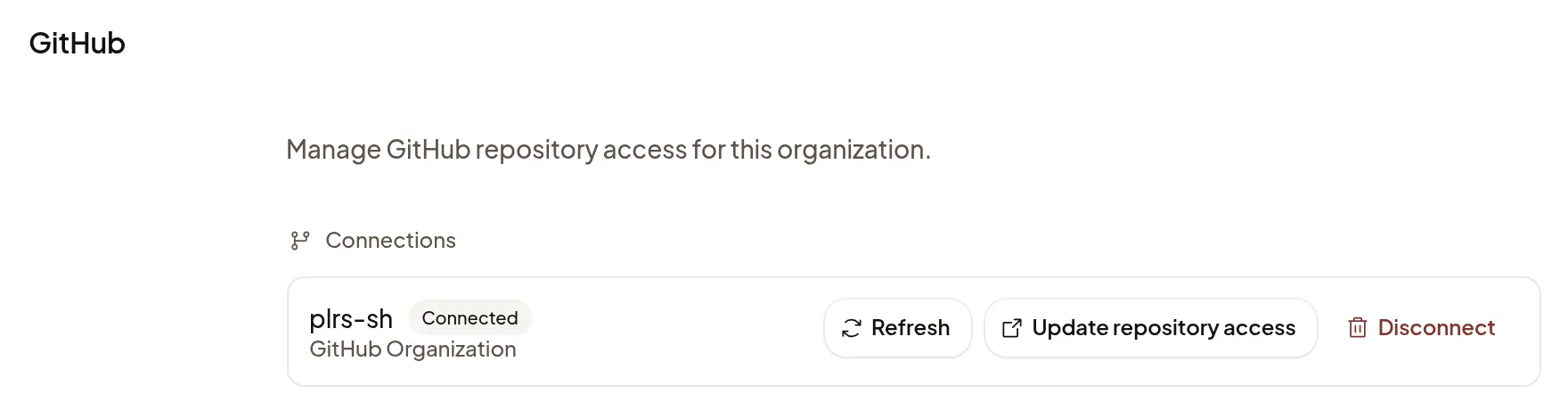
To connect another GitHub account or organization later, open Settings → GitHub and select Connect GitHub repository or Add GitHub connection. In a team organization, only Owners and Admins see this page, and it connects a GitHub organization. Repositories under your own GitHub account go in your Personal organization.
Choose repositories
Agents reach only the repositories you select for the App. To add or remove one, open Settings → GitHub and select Update repository access, which opens the App’s settings on GitHub. If the list doesn’t change when you come back, select Refresh.
What the App can do
The App asks GitHub for the permissions below; GitHub shows the same list when you install it. Repository permissions reach only the repositories you selected, and agents never go beyond your own GitHub access.
| Permission | Access | Why Polaris asks for it |
|---|---|---|
| Contents | Read and write | Clone your repository and push the branches and commits agents make. |
| Pull requests | Read and write | Open pull requests, reply to review comments, and update or merge them. |
| Issues | Read and write | Read issues for context, and open or comment on them. |
| Actions | Read and write | Read CI runs and logs to see whether a change passes, and re-run failed jobs. |
| Checks | Read and write | Read check results on commits and pull requests, and re-request checks. |
| Commit statuses | Read and write | See results other services report on commits, and report results of checks agents run. |
| Workflows | Read and write | Change files under .github/workflows to set up or fix CI. Workflows run with your repository’s secrets, so review these changes carefully. |
| Discussions | Read and write | Read and reply to GitHub Discussions. |
| Merge queues | Read and write | Add a pull request to the merge queue and see its place. |
| Deployments | Read | See which version is deployed and find preview links. |
| Packages | Read | See which versions were published as packages. |
| Pages | Read | Check a repository’s GitHub Pages site and its build status. |
| Dependabot alerts | Read | Find and fix vulnerable dependencies. |
| Metadata | Read | Required by GitHub for every App: repository names, owners and settings. |
| Members (organization) | Read | Request reviews from teams and see who belongs to the organization. |
| Email addresses (account) | Read | Sign you in with GitHub when your email is private, and know where to contact you about your account. |
Polaris also receives pull request updates from GitHub, which refresh a pull request linked to a Session; see Pull requests and CI.
Agents work as you
- Under your name. Agents use Git and the GitHub CLI as your GitHub account, so branches, commits and pull requests appear as yours. This holds in a Session you share, whoever sends the message.
- Never more than you. If you can only read a repository, agents can change files on the Machine, but GitHub refuses their pushes.
- Your rules apply. Branch protection and required reviews apply to agents as they do to you. Because agents can merge anything you can, protect your main branch if you want a person to approve every merge.
Under Settings → Your account → General → Git, two switches are on until you turn them off: Add Co-Authored-By to agent commits credits Polaris on commits agents make, and Link pull requests to their Polaris Session adds a link back to the Session in pull requests agents open.
When your GitHub organization needs approval
If your GitHub organization requires approval for apps and you aren’t one of its owners, GitHub sends your install request to them. Setup shows Waiting for an owner of your GitHub organization to approve Polaris. You can close the page: Polaris checks again when you come back, or select Check again. To start right away, select Use my personal GitHub account for now.
If it doesn’t work
- GitHub access needs attention in a Session: the Session owner’s GitHub sign-in expired. They select Reconnect GitHub. Agents can keep working on the Machine meanwhile.
- GitHub access is temporarily unavailable: wait a moment and try again.
- A push is refused: check that your GitHub account can write to the repository and that it’s selected under Update repository access.
- Pending or Needs attention on a connection in Settings → GitHub: select Refresh. If it stays, select Update repository access and finish setup on GitHub.
If you revoke the Polaris GitHub App in your GitHub settings, agents lose GitHub access; signing in to Polaris with GitHub again restores it. For other messages, see Troubleshooting.