Variables and secrets
Give the agent's commands the settings and keys your code needs.
Save the settings and keys your code needs once, such as a region or an API key, and the agent’s commands on every Machine in the Project get them. The agent can then run your tests, call your services or deploy without you pasting a key into the conversation.
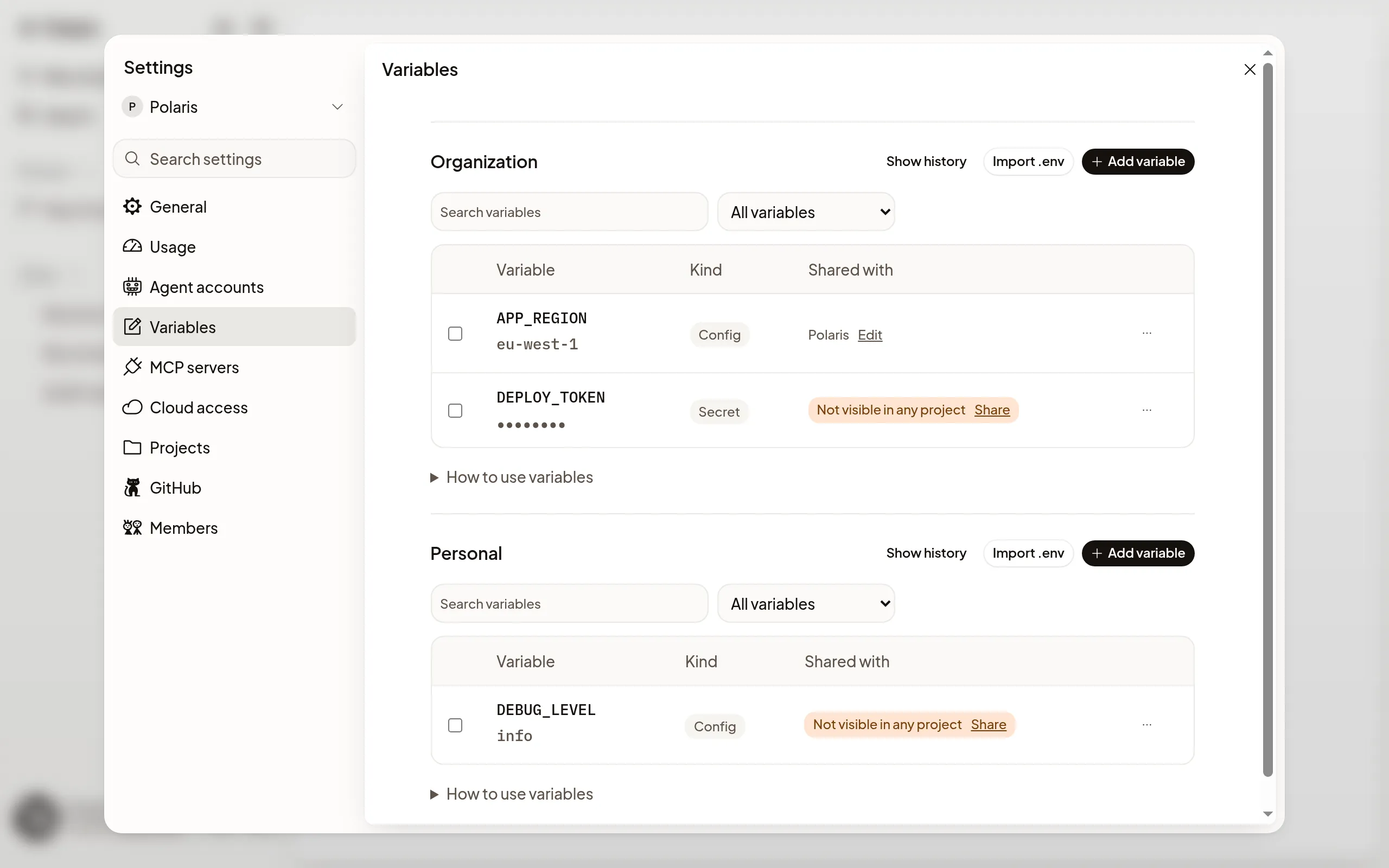
Add a variable
- Open Settings → Projects, select the Project and find Variables.
- Choose Add variable, and enter a Name and a Value.
- Leave Secret on for a key or password, or turn it off for a plain setting.
- Choose Save.
The agent can use the new value right away: Polaris tells it how to run commands with the Project’s variables, and it does so when a task needs them. A command that is already running keeps its old values until it starts again.
To add many at once, choose Import .env and paste or pick your file.
Config or Secret
- Config is a plain value that anyone who can open the settings can read. Use it for things that are safe to show, such as a region or a feature flag.
- Secret can’t be read back after you save it. Use it for passwords, API tokens and private keys. New variables are Secrets unless you turn Secret off.
The agent’s commands get the real value of a Secret, so code the agent runs can
read and use it. Give the agent keys you can revoke. When a command prints a
Secret, the Session shows *** instead, but the agent still sees it. A Secret
shorter than 8 characters isn’t hidden unless it’s limited to certain people.
For a key that would be costly to leak,
keep it off the Machine instead.
Choose who can use it
- Project variables reach every Machine in that Project. Organization owners and admins add them.
- Organization variables live in Settings → Variables → Organization, and owners and admins choose which Projects get them.
- Personal variables live in Settings → Variables → Personal. Every member can add one and share it with Projects. Everyone’s commands in those Projects get it, not only yours, so share a personal key only where others may use it.
A shared variable reaches no Project until you choose Share beside it; until then it shows Not visible in any project. Owners and admins can also limit a variable to certain people with Who can use it.
When a name is set in more than one place, a shared Personal value wins over the Project’s own, which wins over an Organization value. The Source column in the Project’s Variables shows which one commands get.
Change or remove a variable
Select a variable to change it, or choose Replace or Remove from its ⋯ menu. New commands get the change at once; a command that is already running keeps the old value until it starts again. Show history lists who changed what, and when, without showing values.
If a command doesn’t get a variable
- Not visible in any project: choose Share and pick the Project.
- A long-running command, such as a dev server, has an old value: ask the agent to restart it.
- A command you typed in the Terminal doesn’t get variables on its own. Machine commands shows how to run it with them.