Talk to the agent
Steer the agent while it works, queue the next task, answer its questions, or stop it.
You talk to the agent from the composer at the bottom of a Session, and you don’t have to wait for it to finish. Add a detail it missed, change direction mid-task, line up the next task, or stop it. To begin new work instead, see Start a Session. For what you can put in a message, such as files, Sessions, skills and screenshots, see The composer.
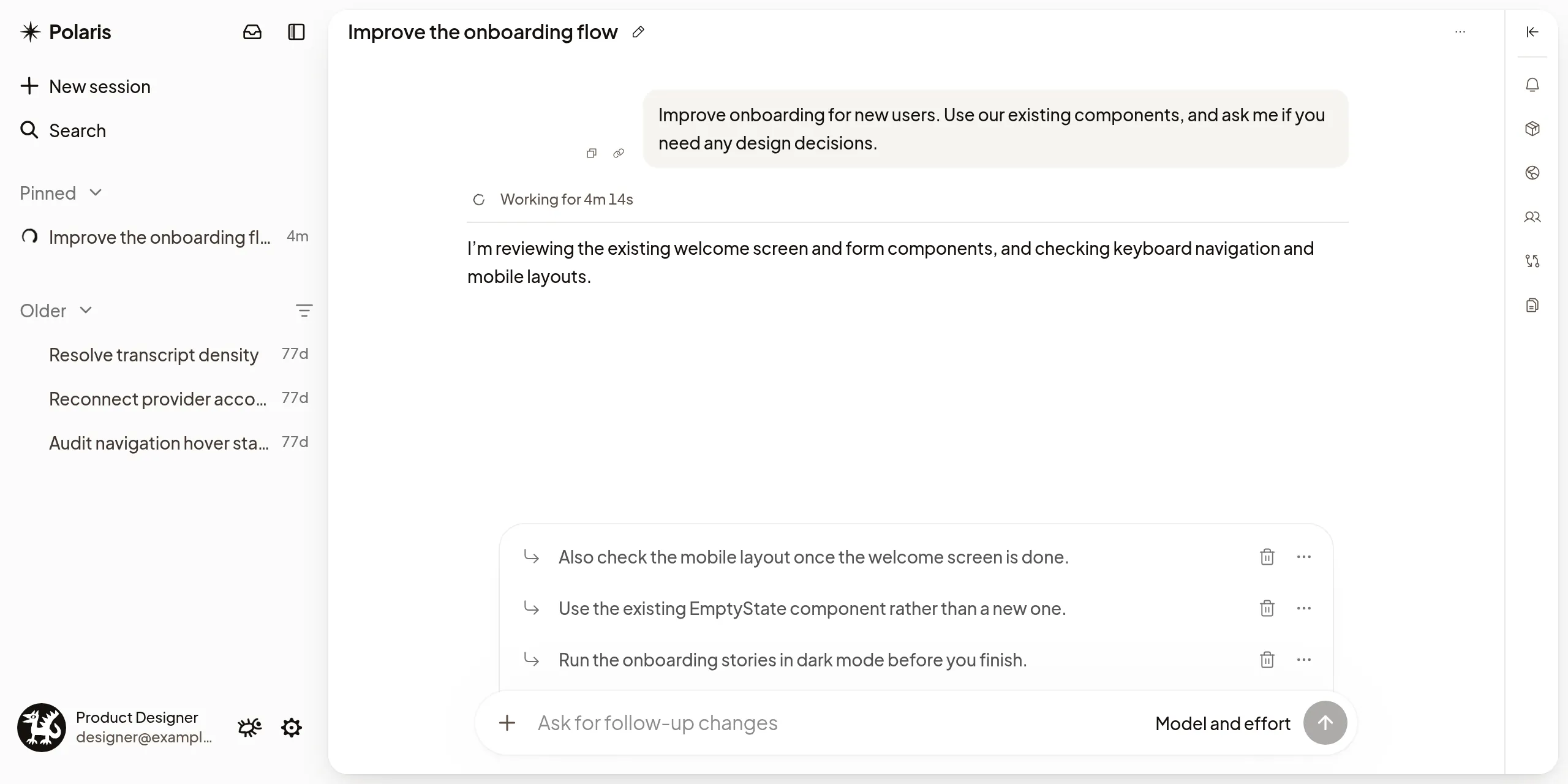
Send a message
Type your message and press Enter. If the agent is idle, it starts working on it; if its Machine is asleep, your message wakes it.
Follow what it does
The transcript shows each step as it happens: what the agent says, the commands it runs and the files it changes. Expand a command to see its output. Open links the agent sends, or select a file path to open the file.
When a long conversation fills the agent’s context, the agent compacts it: it summarizes what came before and carries on from that summary. With Claude Code and Codex, the transcript shows Compacting context while it happens, then Context compacted, with how much context it freed when the agent reports it. When the agent kept a summary, select Context compacted to read the summary it continues from. To compact a long conversation yourself, see The composer.
Steer or queue while it works
While the agent works, a message you send does one of two things:
- Steer, the default, reaches the agent right away. It takes your message into account without stopping. Use it to correct course or add a detail. While the agent is compacting its context, your message waits until the compaction finishes; see Send or remove a waiting message.
- Queue waits above the composer until the agent finishes, then goes as the next task.
Press Ctrl+Enter (⌘+Enter on a Mac) to do the other one once. To make Queue the default, set Settings → General → Follow-up behavior to Queue. Until a queued message starts, you can send it now with Steer, take it back with Edit queued message, or delete it with Remove from queue.
Send or remove a waiting message
A message you steer with while the agent compacts its context waits, and shows Sends after compaction under it with Claude Code and Codex. Next to it:
- Send now stops the compaction, so the agent gets your message now. The compaction then shows Compaction stopped.
- Remove means the agent never gets your message. It stays in the transcript, dimmed, and shows Removed. You can’t undo this.
What you see depends on the agent and who started the compaction:
- After you run
/compact, Codex and Claude Code offer both. - When the agent compacts on its own, Claude Code offers Remove. Codex offers neither.
Only the person who sent the message sees these actions. If the agent already has your message, Remove can’t take it back, and the caption says Too late to remove. The agent still gets this message.
Some Machines can’t send or remove a waiting message. The caption then says so, and your message still goes to the agent when the compaction ends. Stop agent stops a compaction too, along with the agent’s work.
Stop the agent
When the composer is empty, the send button becomes Stop agent. Stopping doesn’t undo what the agent already did. Queued messages the agent hasn’t received come back into the composer, in order and ahead of anything you were typing, so you can edit them or send them again. If they came back in another window, select Restore draft to bring them here. Subagents keep running until you stop them; see Subagents.
Answer the agent’s questions
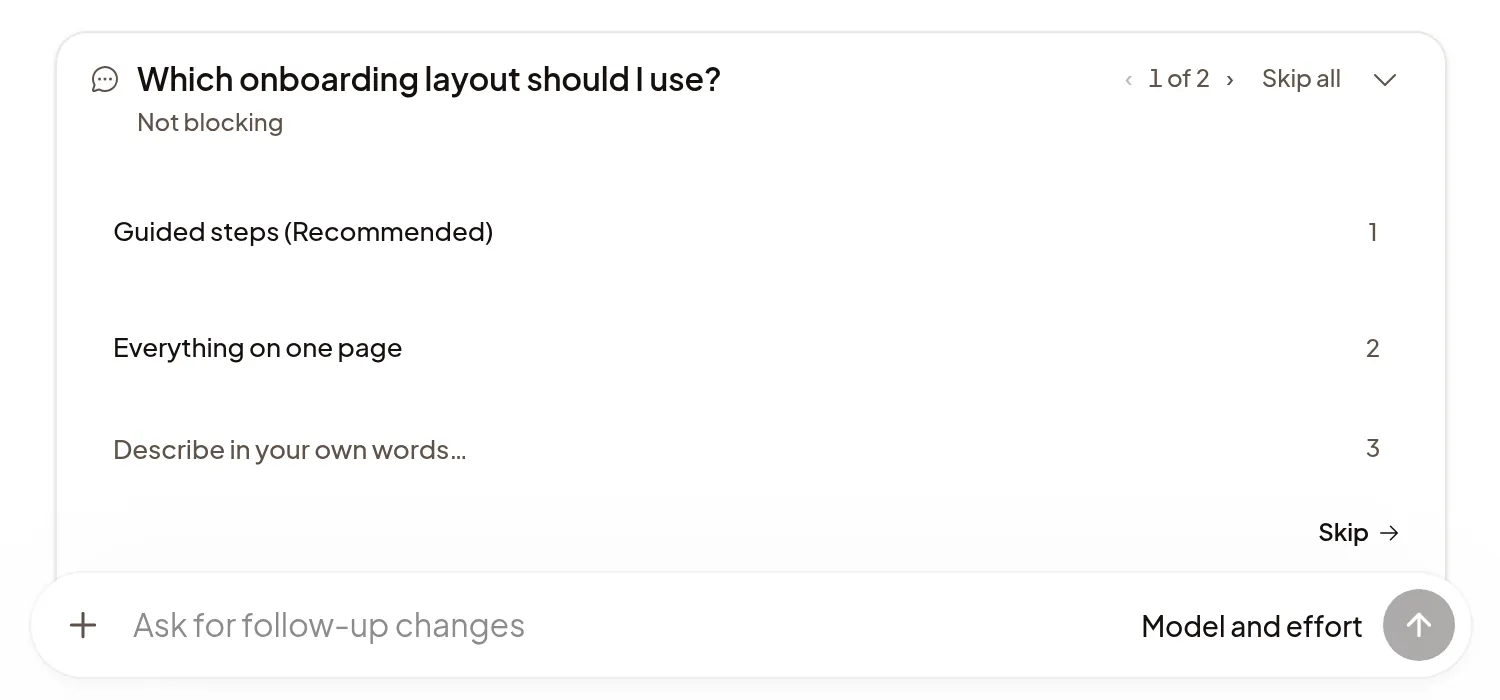
When the agent needs a decision, its question appears above the composer. Choose an option or type an answer, or select Skip to let the agent use its own judgment. While a question is Not blocking, the agent keeps working. For a Blocking question it waits for you; if you don’t answer in time, it stops waiting, and your later answer still reaches it. A Session with an open question shows Needs you; see What needs you.
If it doesn’t work
- Not sent, Not confirmed or Not delivered under your message: use the action next to it, such as Retry. To drop a message that shows Not sent or Not confirmed, choose Remove, or Edit to move it back into the composer; Undo brings it back for a few seconds. Removing never takes back a message the agent already has.
- Agent isn’t starting · Polaris is retrying: you don’t need to do anything. If Polaris stops trying, your message shows Not delivered; select Retry.
- Couldn’t reach the Machine to stop. Try again.: select Stop agent again.
- For anything else, see Troubleshooting.