MCP servers
Give your agents extra tools, such as your issue tracker or error monitoring, with MCP servers.
MCP servers give agents tools beyond your code: search and update issues, read your team’s docs, look up errors while debugging. Add a server once in Settings, and every Codex and Claude Code Session it reaches can use it.
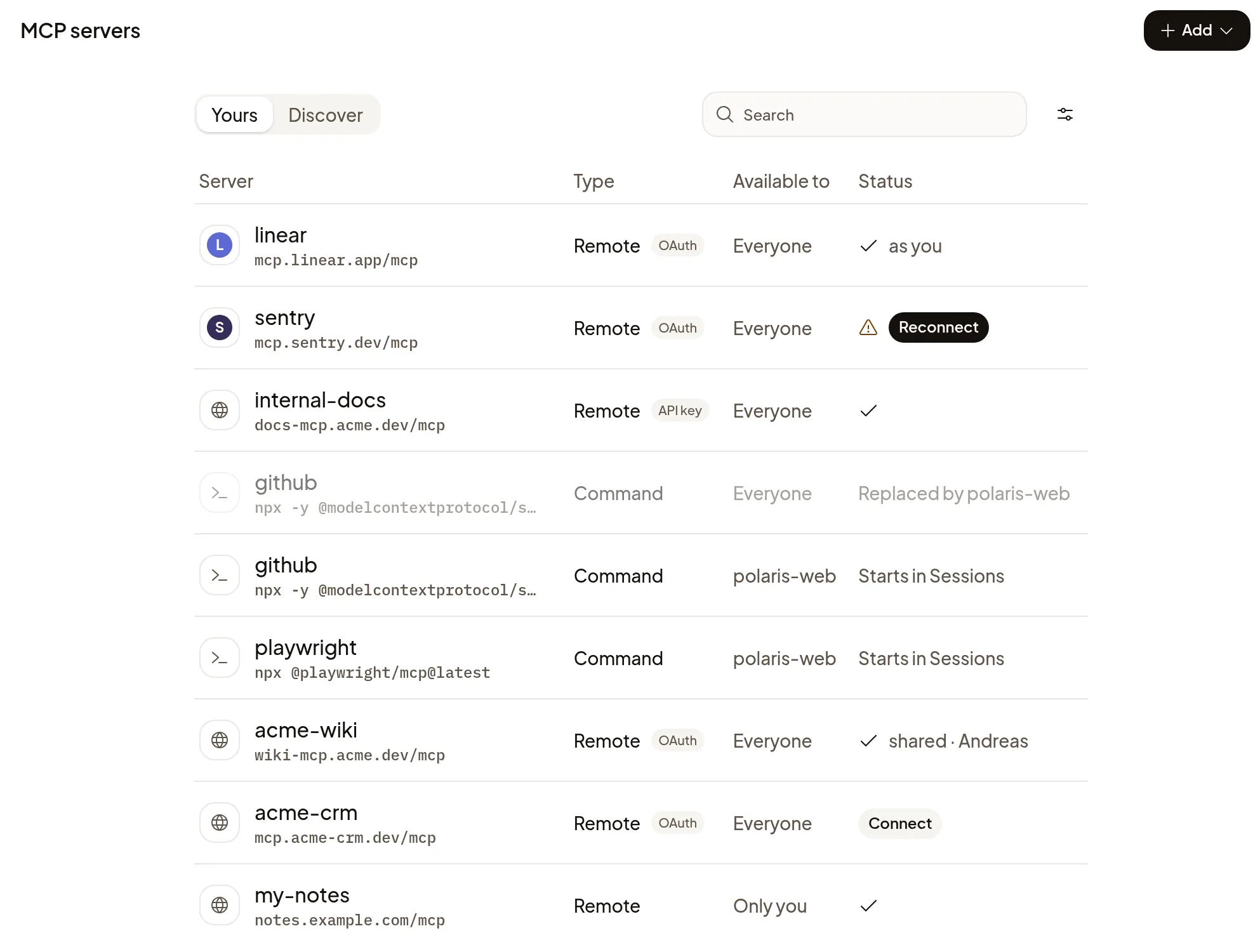
Add a popular server
- Open Settings → MCP servers and select Discover.
- Under Popular, select Linear, Notion or Sentry.
- Choose who gets it in Available to, then select Continue and sign in.
Add any other server
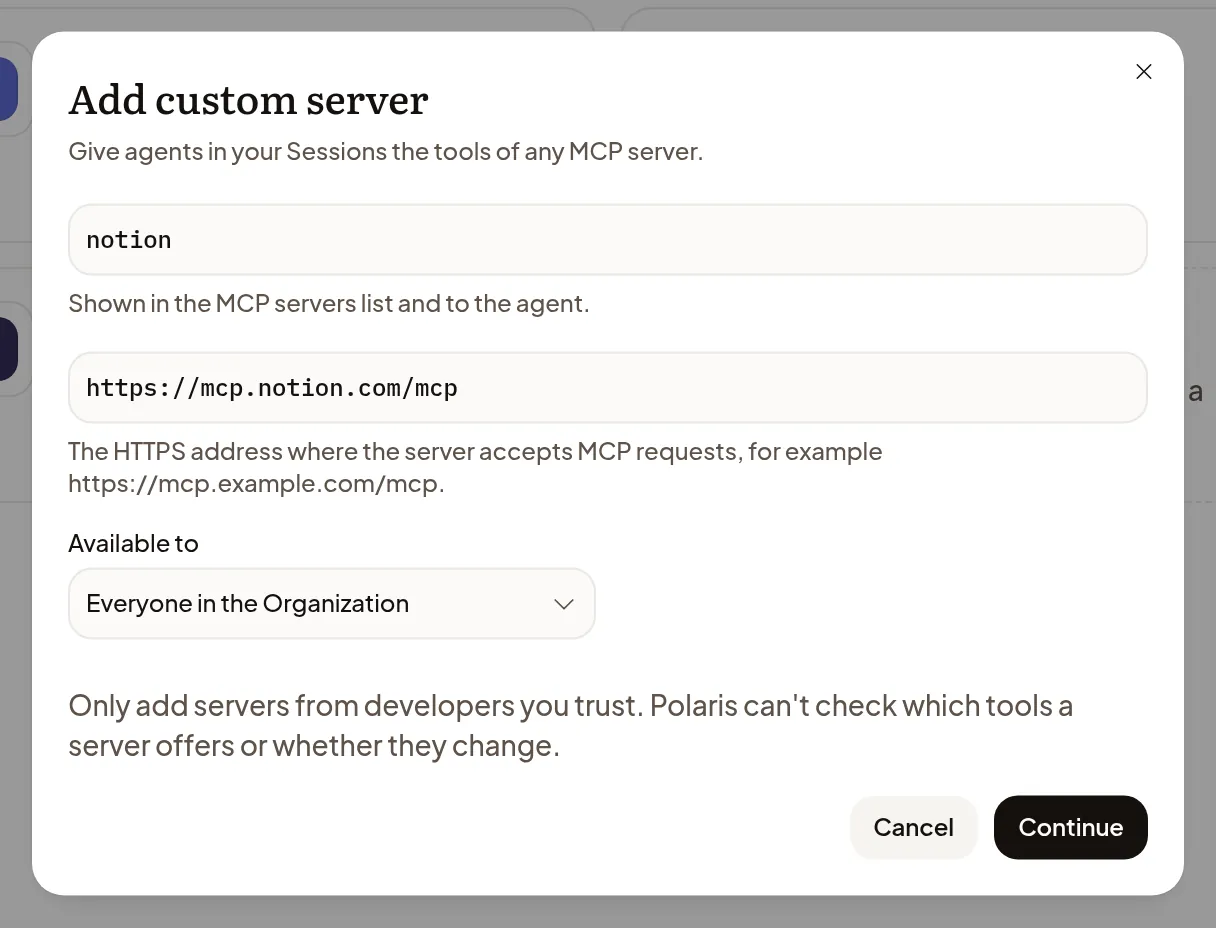
- Select Add, then one of:
- Add custom server (URL) for a server on the web. Enter its MCP server URL.
- Add command server for one that runs on the Machine in each Session. Enter its command.
- Give it a Name, choose Available to, then select Continue or Add server.
A command server gets the Project’s environment variables, so put its keys there, never in the command.
Sign in
When you add a server on the web, Polaris checks how it signs in:
- No sign-in needed: select Done.
- API key: paste it. Polaris sends it only to that server, and it never reaches the Machine.
- OAuth: select Connect my account to sign in as yourself. On a server others get too, Connect shared account signs in once for everyone who hasn’t connected their own.
Once an OAuth server is signed in, the Status column shows as you or shared. Your own account always wins for your Sessions.
Choose who gets it
| Available to | Reaches | Who can add it |
|---|---|---|
| Everyone in the Organization | Every Session in the organization | Owners and Admins |
| A Project | Sessions in that Project | Owners and Admins |
| Only me, in every Project | Only your Sessions | Anyone |
Everyone can see the organization’s and Projects’ servers, except one that an admin limited to selected people or groups. If a server your team uses is missing for you, ask an admin to add you to it. If two lists have a server with the same name, your own wins over a Project’s, and a Project’s over the organization’s.
To see what agents did with a server on the web, open it: Recent use lists its recent calls and the Sessions that made them.
When changes apply
New Sessions get the change. A Session that’s already running keeps the servers it started with, except that removing a server on the web, or taking it away from someone, stops its tools right away. A command server keeps running in Sessions that already started it, so start a new Session when it must be gone. After you connect or reconnect a sign-in, open the server and choose … → Retry in my open Sessions. Polaris reconnects it right away in Sessions whose agent supports that, and tells you which Sessions get it when they next start.
If it doesn’t work
- Connect or Reconnect in the Status column: the sign-in is missing or expired. Select it and sign in. If your own sign-in expired, Use shared instead switches you back to the shared one.
- This server signs in at another address: select Use this address. If it says This server’s sign-in belongs to another website, Polaris won’t send your sign-in there; check the server’s address with whoever runs it.
- Replaced by in the Status column: another list has a server with the same name, and Sessions use that one. Rename one of them.
- A server’s tools are missing in a Session: start a new Session, or use Retry in my open Sessions.
- Only lets approved apps connect: that service accepts only apps it has approved, and Polaris isn’t one of them. Ask whoever runs it to approve Polaris.
- Rejected Polaris’s request to set up sign-in: that service didn’t accept the setup Polaris asked for, so Polaris can’t connect to that server. Report a problem and include the server’s address.
- A sign-in message that names the server’s administrator: Polaris can’t sign in to that server as it’s set up. Ask its administrator, as the message says.