Previews
See the app your agent is building, live, next to the conversation.
When the agent runs your app on its Machine, open it in a Preview: a private link to the running app that you can click through right beside the Session, or in its own browser tab. Use it to check a UI change, try a flow end to end, or show a teammate what the agent built, without deploying anything.
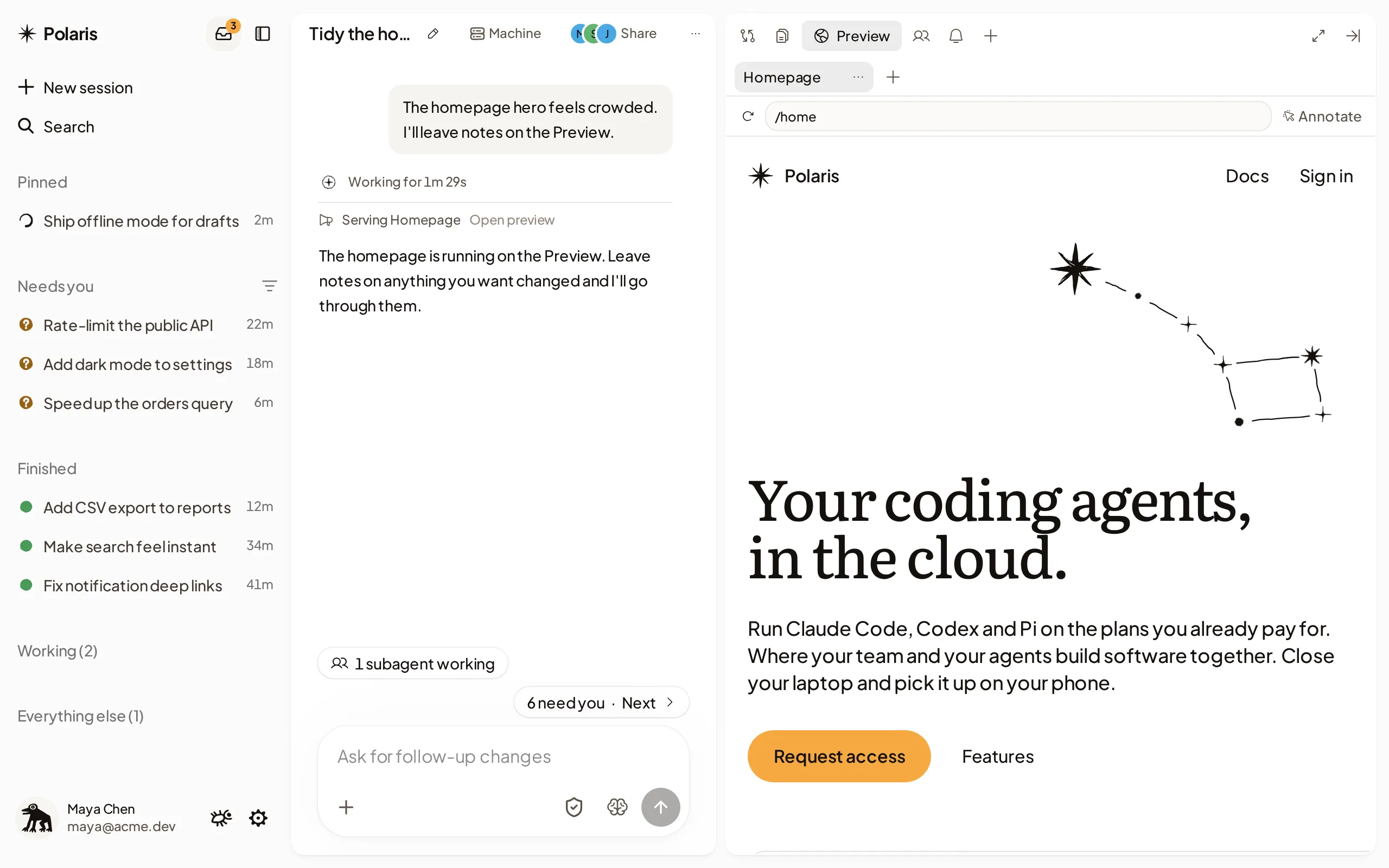
Open links from the agent
When the agent shares a web link in the Session, click it or press Enter while it has focus:
- Apps running on your Machine open in Preview, beside the Session.
- Other websites, such as docs and pull requests, open in a new browser tab.
Right-click a link, or touch and hold it on your phone, to choose Open in Preview or Open in Browser, Open in new tab, or Copy link. The menu shows the side panel action when the link can open there; Click marks the action a normal click uses. You can also open this menu with your keyboard’s context-menu key while the link has focus.
Hold ⌘, Ctrl or Shift while clicking, or use the middle mouse button, to open the link as your browser normally does.
To change where a normal click or tap opens links, go to Settings → General → Links:
- Apps on your Machine: choose Preview or New tab.
- Other websites: choose Side panel or New tab. Side panel opens the site in Browser, or in Preview on a Machine without Browser.
These choices follow your account across devices. A link that isn’t a web page, such as an email address, opens the way your browser normally opens it.
When an HTML artifact asks to open a link, Polaris shows the address first, and opens it only when you choose Open in new tab or the side panel action.
Every app running on the Machine is also listed under From this machine when you select + in the Preview tab, and every Preview the agent shares is in the Session’s Artifacts tab, so you can find it again later. If the Machine is asleep, opening a Preview wakes it.
Start the apps your repository lists
A repository can list its dev servers in .agents/services.yaml, at its root.
While the Machine is awake, each one shows under From this machine in the
+ tab with its port, even when it isn’t running. Select Start to run it;
it opens in Preview once it starts. A server you start comes back by itself
after the Machine sleeps, and the agent can start the same servers.
If a server you started stops with an error, its row shows Restart.
services:
  - name: web
    command: pnpm dev --host 0.0.0.0 --port 5173 --strictPort
    port: 5173
    cwd: apps/web
label: Web appname: up to 32 lowercase letters, digits and hyphens. Each name is used once.command: the command that runs the server, fromcwd, in a login shell. It must listen onportat0.0.0.0.port: from 1024 to 65535. Each port is used once.cwd(optional): a folder in the repository. Without it, the repository’s root.label(optional): the name Preview shows. Without it,name.
A file lists at most 32 servers and has no other keys. If Polaris can’t read it, the + tab names the problem; ask the agent to fix the file. The list shows while the Machine is awake, and Start shows for people who can drive the Session.
Move around your app
Click through your app as you would in your own browser. Above the app, the address row shows the page you opened:
- Go to a page: type a path, such as
/settings, and press Enter. A full address of another site opens the way a link does. - Reload: loads the address shown again. Pages you reach by clicking in your app don’t change the address row.
Leave notes on your app
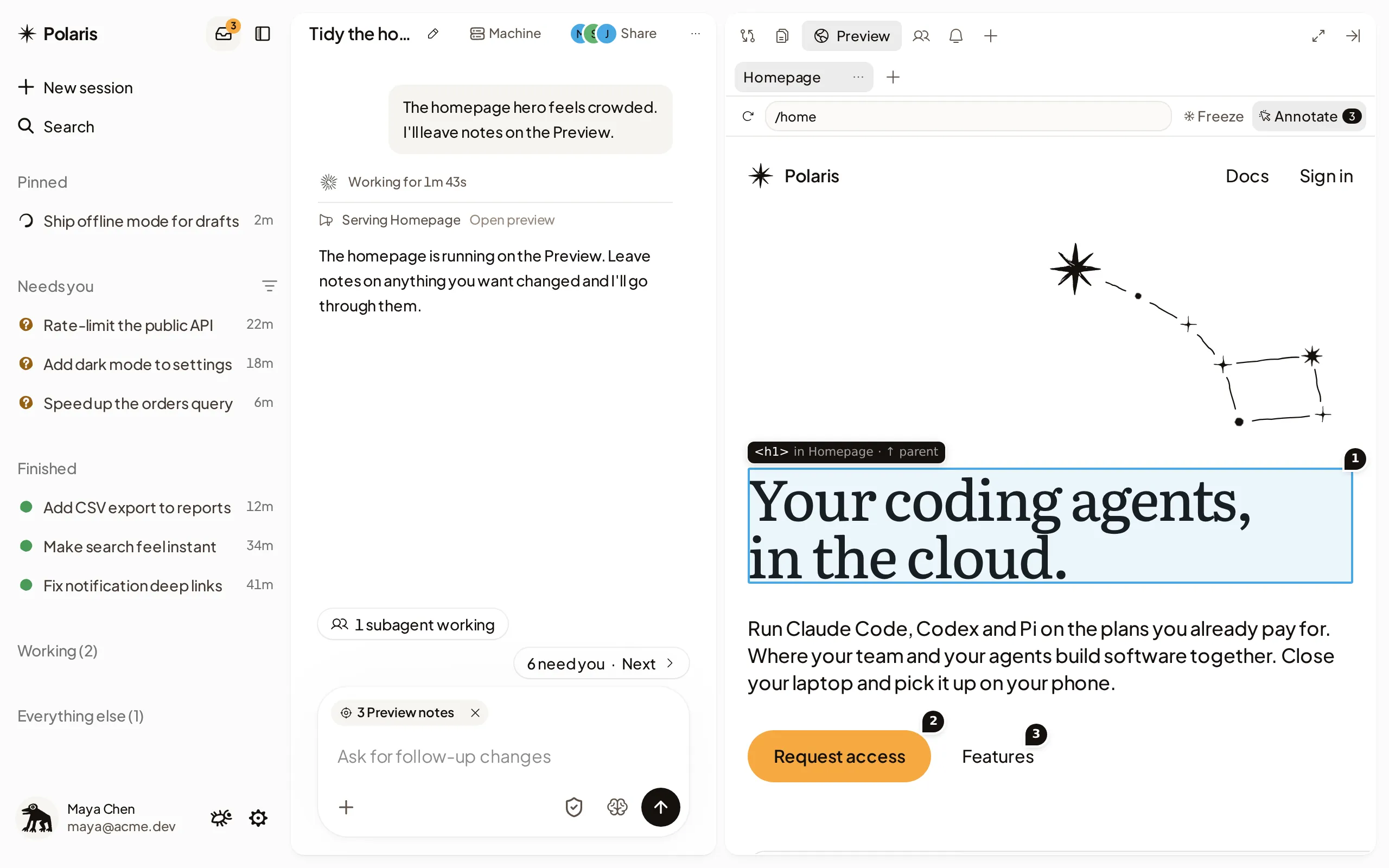
Point at what should change instead of describing where it is. Select Annotate at the end of the address row (⌥⌘A on a Mac), then:
- Note one element: hover to see its name, press ↑ or ↓ to pick its parent or child, then click it and write what should change. Enter saves the note; Esc closes it.
- Note several elements at once: hold ⌘, click each one, then release ⌘.
- Note an area: drag across it.
- Use the page while annotating: hold ⌥, for example to open a menu. Freeze holds menus, hovers and animations still so you can note them.
Each note gets a numbered pin on its page. Your notes wait in the composer as Preview notes until you send your next message, which carries them with each element’s name, where it is in your code when the app shows it, and the page’s address on the Machine. After you send, open Preview notes on your message and choose What the agent got to see exactly what the agent received. Notes stay on this browser tab until you send them.
If your app reloads and an element is gone, its pin turns into Moved or removed; the note still sends, or choose Pick again. If a page’s own security settings block notes, Annotate says so.
Show it to your team
A Preview link opens for members of your organization who can see a Session on that Machine, and for no one else. Send it to a teammate to show them work in progress, or make a public link for anyone else.
Your access to a Preview lasts as long as you stay signed in to Polaris. Someone who signs out, is removed from your organization or can no longer see the Machine’s Sessions loses access to its Previews within about five minutes, including pages they already have open. If Polaris can’t confirm their access at that moment, it can take up to 30 minutes.
Share it with anyone
To show your app to someone outside your organization, such as a client or a reviewer, open the menu on its tab in the Preview and select Share publicly…. Choose how long the link lasts (1 hour, 3 hours, 1 day or 7 days) and select Create link, then Copy.
Anyone with that link can use your app without signing in until it ends. The link opens only the app: not the Session, its Machine or anything else in Polaris. The tab shows a globe while the Preview is public.
- Copy the link when you create it. Polaris keeps no copy, so it can’t show the link again; select Create new link for another one. The old link stops working.
- Select Stop sharing to end the link early. Pages already open stop within about a minute.
- Anyone who can open the Preview can create or stop its link, except an organization Owner or Admin who can only watch the Session.
- A link doesn’t wake the Machine or keep it awake. While the Machine sleeps, visitors see that the app isn’t running; use Keep it running for a demo.
- A link ends early if the person who made it leaves your organization, or the Machine is replaced.
Organization admins can turn public links off in Settings → General, under Previews. That ends every public link, and turning them on again doesn’t bring those links back.
Keep it running
Machines sleep when the agent has nothing to do, and your app stops with them. Clicking or typing in your app in the Session’s Preview keeps the Machine awake; scrolling alone doesn’t. See Sleep and wake.
To keep the Machine awake while you aren’t using the Preview, such as during a demo, open the menu on its tab in the Preview and select Keep Machine awake for 1 hour. The Preview then shows Awake until and the time it ends. Select Cancel to end it sooner.
- Anyone who can open the Preview can start it or cancel it, except an organization Owner or Admin who can only watch the Session.
- The agent can’t end it.
- Archiving every Session on the Machine still puts it to sleep.
To have your app come back on its own after the Machine sleeps, ask the agent to keep it running.
The link stays the same after the Machine sleeps and wakes, so a bookmark keeps working.
Open other websites
To use another site alongside the agent, type its address under + in the Preview tab. It opens in Browser, or in Preview on a Machine without Browser. Some sites don’t allow Preview; open those in a new tab. For links in the Session, see Open links from the agent.
If a Preview doesn’t load
- Machine is asleep: select Wake machine.
- Website is unavailable: your app isn’t running. Ask the agent to start it again.
- Preview is no longer available: ask the agent for a new Preview.
- This link isn’t available for someone you shared with: the link expired, was stopped or was replaced. Create a new link and send it.