Artifacts
Find the pull requests, Previews, pages, charts, images and videos the agent made in a Session.
The Artifacts tab collects what the agent made in a Session that you’ll want to open again: the pull requests it worked on, its Previews, the pages and charts it showed you, and the images and videos it shared. Use it to get back to a result without scrolling through the transcript.
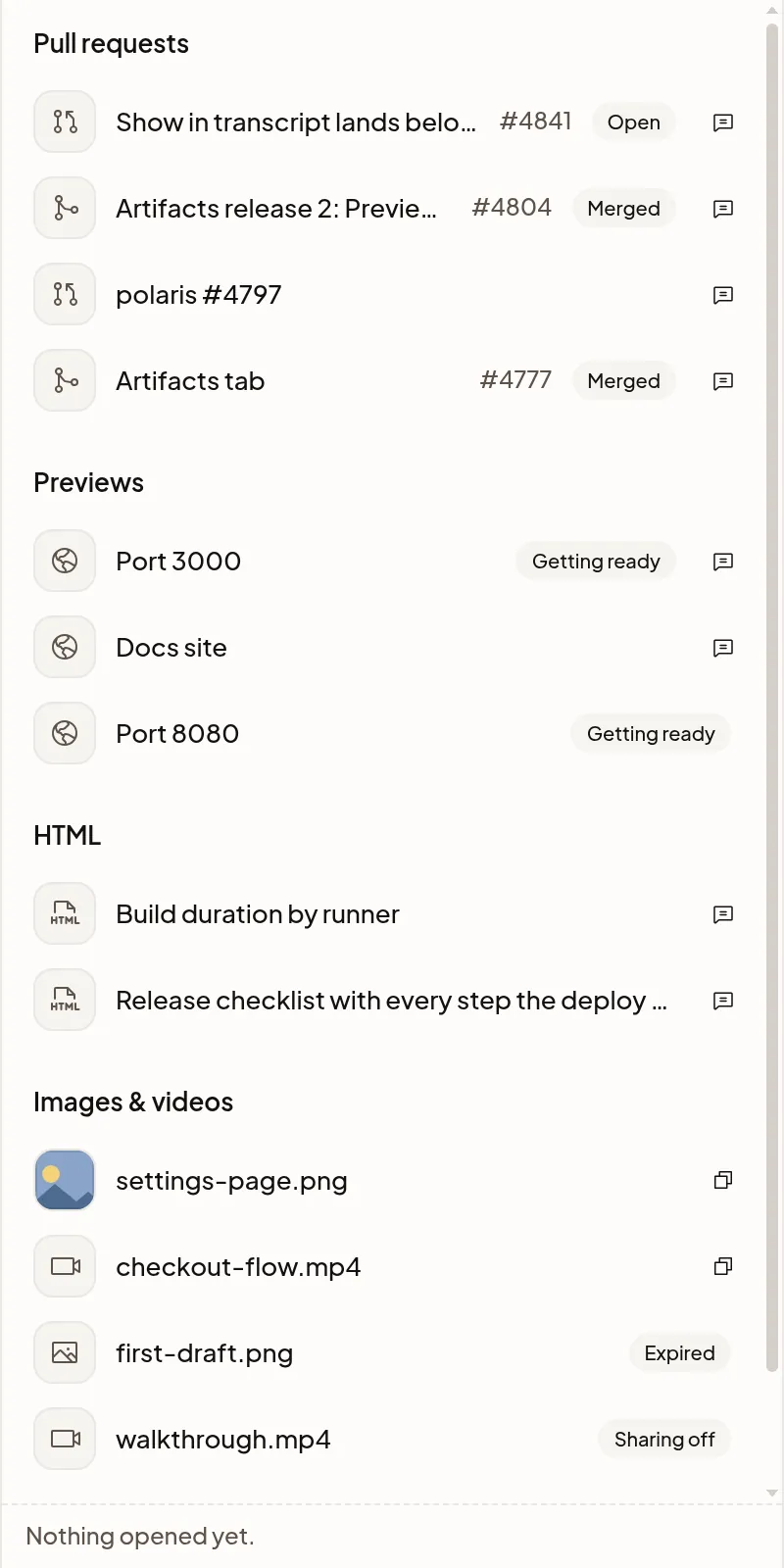
Find what the agent made
Select Artifacts in the Session’s right sidebar; on a computer it’s under + in the tab row. New items appear as the agent works, in four groups:
- Pull requests: the pull requests the Session and its subagents worked on, with their live status. Select one to open it on GitHub. The state shows once your GitHub account is connected. The pull request linked to the Session and its Watch PR switch are here too. To link a pull request, watch it or follow CI, see Pull requests and CI.
- Previews: the apps the agent is running. Select one to open it in the Preview tab; see Previews. A Preview that has ended moves to Earlier previews and no longer opens.
- HTML: pages, charts and tables the agent showed in the transcript. Select one to open it full screen.
- Images & videos: screenshots and recordings the agent shared. Select one to open it in a new tab, or Copy link to paste it somewhere else.
Show in transcript takes you to the moment the agent made it. Previews, HTML, images and videos stay with the Session that made them.
See pages, charts and tables
The agent can draw a page, such as a chart or a diagram, right in the transcript when a picture says more than text.
You can use the page right there in the transcript. To see it bigger, select Open full screen under it: on a computer, point at the page to show the button. A very long page shows only its top part, with Open full screen over its end. The page runs on its own: it has no internet access and can’t read your Session, files or sign-ins, so it shows only the data the agent put in it.
See images the agent works with
- When the agent saves a screenshot or recording in your project, expand that step in the transcript to see it while the Machine is awake.
- With Claude Code, expand a step to see an image the agent looked at, such as a browser screenshot. It stays with the Session, even while the Machine sleeps.
Anyone who can see the Session sees these images too. Polaris hides known secrets in text, but it can’t hide them inside an image.
Share an image or video
The agent can also share screenshots and recordings, so you can put them in a pull request or send them to someone.
The agent replies with a public link: anyone who has it can open the file without signing in, so don’t share anything private. Organization admins can turn sharing off and choose how long files are kept in Settings → General, under Shared files.
If it doesn’t work
- Getting ready: Polaris is still checking a new Preview. Wait a moment, then select it again.
- Asleep on a Preview: open it, and the Machine wakes.
- Expired or Sharing off on an image or video: its link no longer opens. Ask the agent to share it again, or an admin to turn sharing back on.
- Preview unavailable in the transcript: wake the Machine and expand the step again, or ask the agent to share the file.