Start a Session
Give the agent a new task in one of your repositories.
Start is where you hand the agent a new task. Pick a repository, describe the result you want, and Polaris gives the agent its own Machine with your code on it. Use one Session per task: each one gets its own Machine, so you can start several and they never get in each other’s way.
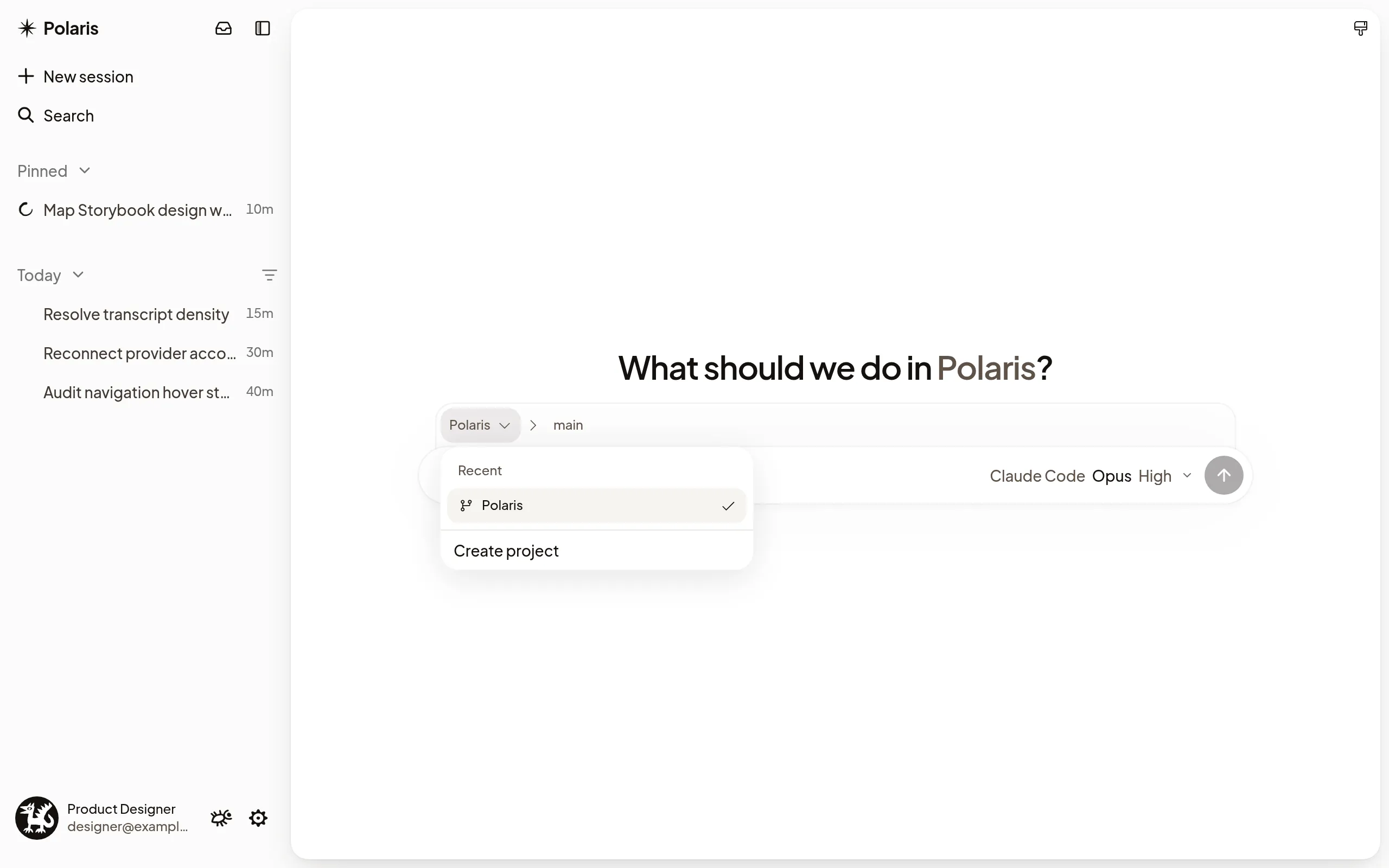
Start a task
- Select New session at the top of the sidebar, or press Ctrl+Shift+O (⌘+Shift+O on a Mac). To start in a Project you already use, hover it in the sidebar and select +.
- Choose the repository. Recent lists the Projects you work in, and All repositories lists the rest Polaris can reach on GitHub.
- Describe the task and press Enter.
Work starts from the Project’s default branch, marked Default. To start from another branch, select the branch next to the repository, then choose one under Recently committed or type to search all of them.
Choose the agent
The control next to Start shows the agent, model and effort. Select it and choose Codex, Claude Code or Pi under Agent; when it opens on the effort slider, select Agent below the slider first. The list then shows that agent’s models; pick one, or keep its default. Recent brings back an agent, model and effort you used before. Start opens with your last choice next time, on every device. See Agent accounts to connect an account for each agent.
The Machine the task runs on shows at the top right of the composer. Select it to choose its CPU, memory and disk; see Choose its CPU, memory and disk.
Some agents also show Permissions. Auto lets routine work run on its own and has an AI reviewer check riskier actions first. Full access runs every command and edit without checks.
To show the agent something, attach screenshots, logs or other files with
+ → Attach files, or drag them into the message. Type @ to point at a
file in the repository, or / to use a skill. See
The composer for more.
What happens next
The Session opens right away with your message. A short checklist shows Polaris creating the Machine and copying your repository onto it, then the agent starts. You can close the tab; the agent keeps working.
To keep working on the same code later, send a follow-up in the same Session instead of starting a new one. A new Session is private to you until you share it.
Come back to a draft
If you leave Start before sending, Polaris keeps what you wrote under Drafts at the top of the sidebar. Select it to pick up where you left off, with your repository, branch, agent and attachments. You have one draft at a time, and it stays in this browser only. To throw it away, select the × on its row.
Change how Start looks
Select Customize Start Work, the brush in the corner of Start, and choose a wallpaper, None, or Upload image to use your own picture. Clear Same wallpaper in light and dark to choose one for each theme. Your choice follows your account to every device. You can also change it in Settings → Appearance, under Start Work wallpaper.
If it doesn’t work
- Your repository isn’t listed: select Connect GitHub repository and give the Polaris GitHub App access to it. In a team, an owner or admin can add it in Settings → GitHub.
- No Codex account is connected. (or another agent): select Connect Codex. You can start anyway; your message waits until an account is connected.
- Machine setup failed: select Try setup again. Nothing was lost.
- For other messages, see Troubleshooting.