Conversation recaps
Catch up on a Session, request a recap with instructions, and choose whether your organization creates recaps.
Conversation recaps summarize a Session’s progress, decisions and open questions. Use them to pick up where you left off or follow a Session a teammate shares.
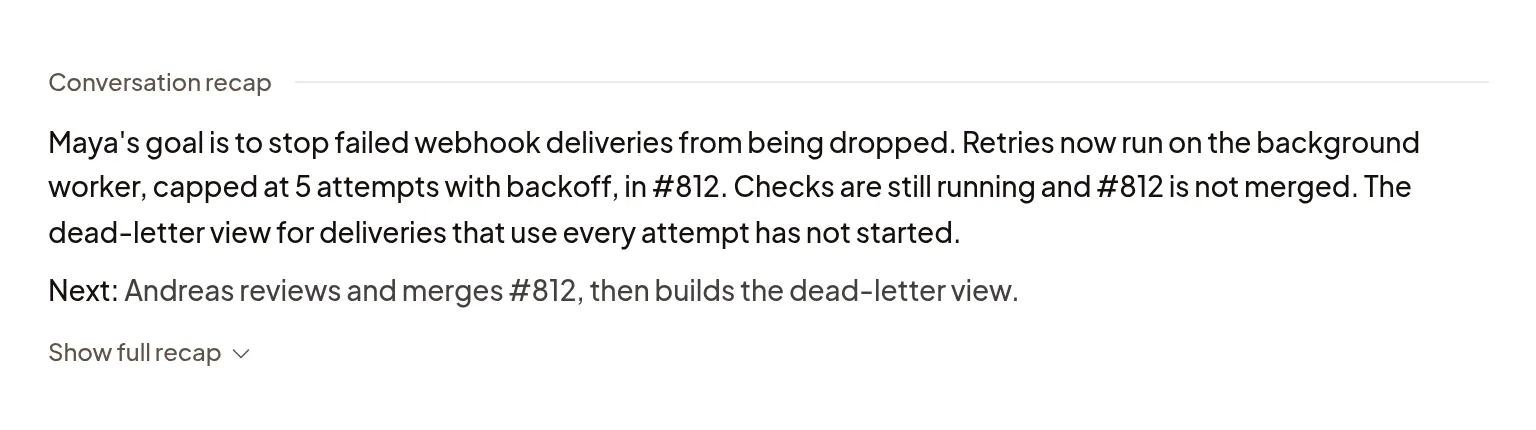
Send /recap in the composer to add a recap to the transcript. It works in
every Session without interrupting the agent.
Read a recap
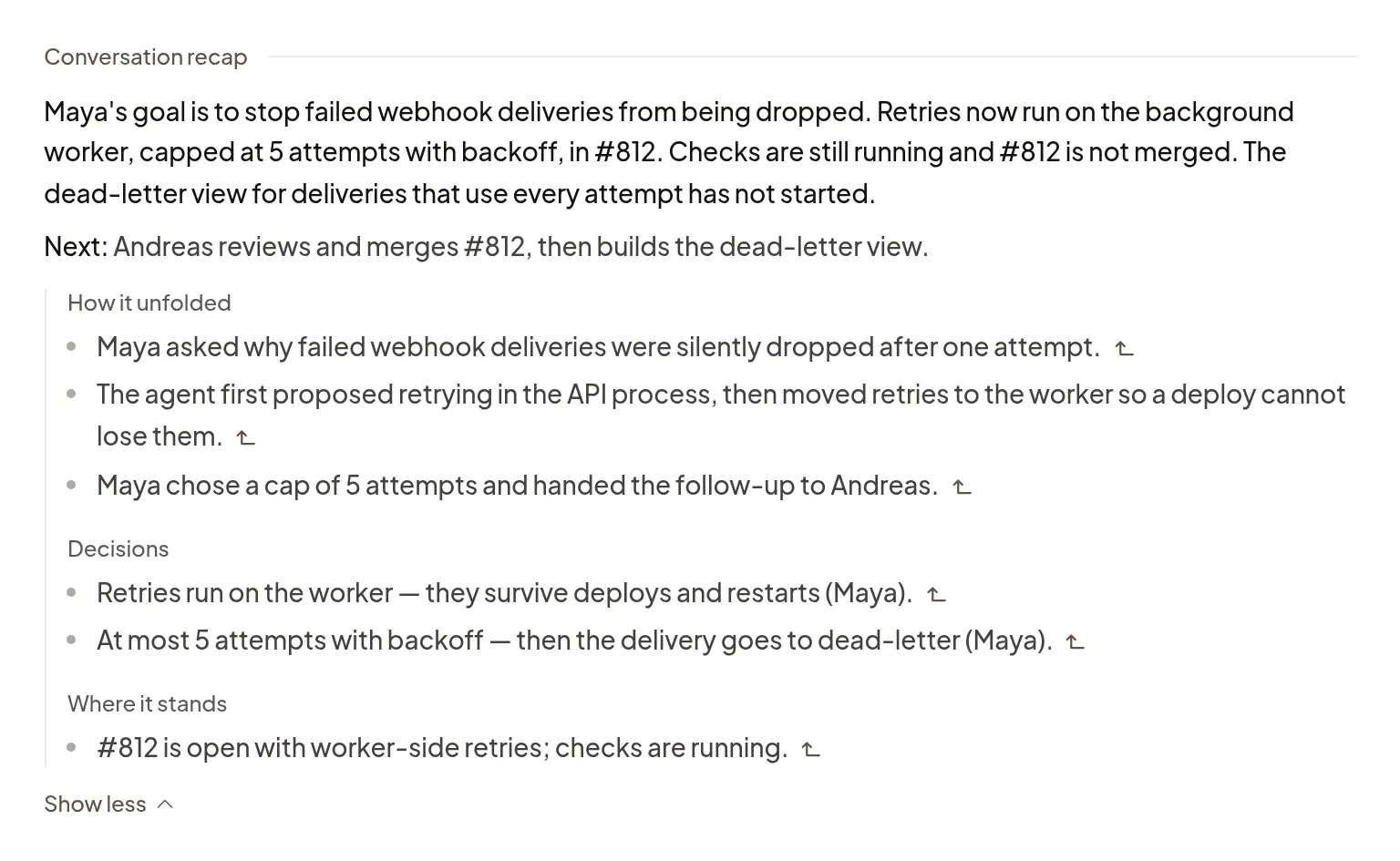
A recap starts with a summary and, when there is a next step, Next:. Sections below it cover what happened, decisions and where the work stands. Select a source link beside a bullet to jump to the transcript. Bullets with several sources show numbered links.
Automatic recaps show the summary first. Select Show full recap to read the sections, then Show less to fold them again. Requested recaps show the sections straight away.
Request a recap
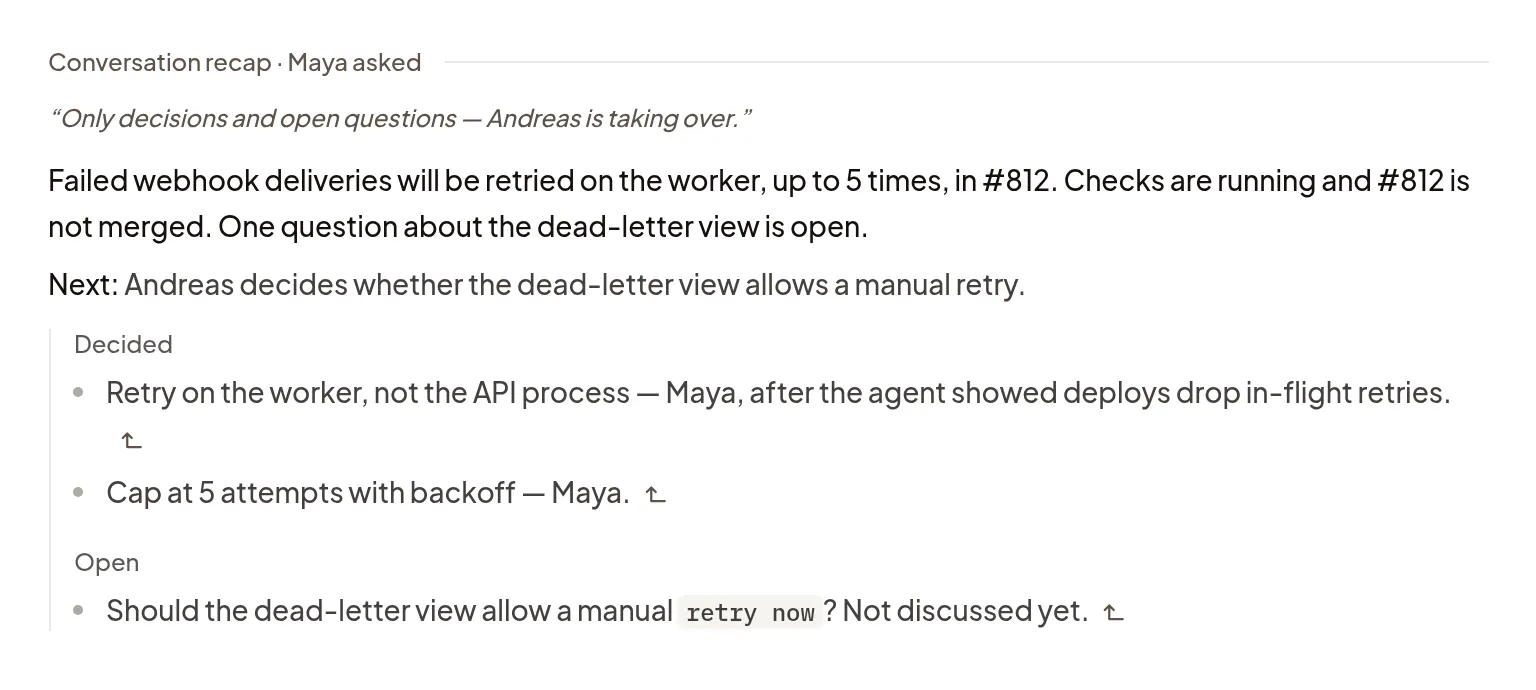
Send /recap on its own, or add instructions after it to choose what the recap
covers. Instructions can be up to 2,000 characters.
Everyone who can open the Session can read the recap and its instructions. In a shared Session, the heading shows who asked: You asked for your own request, or the other person’s name.
Come back to an automatic recap
Polaris adds an automatic recap at the end of the transcript when nobody has had the Session open for about 30 minutes after the later of the agent finishing and the last person viewing it. No Turn can be running. The Session needs at least 3 completed Turns, and at least 2 more since its last automatic recap; subagent Turns don’t count. Each organization can get up to 100 automatic recaps per day. The last completed Turn must have finished within the past 24 hours.
Automatic recaps don’t mark the Session unread. Earlier recaps stay in the transcript, so you can return to them as the work continues.
Choose whether to create recaps
In Settings, choose your organization, then open General → Recaps. Conversation recaps is on by default. Owners and Admins can turn it off to stop new automatic and requested recaps. Existing recaps stay in the transcript.
Session content is sent to OpenAI to write recaps.

If it doesn’t work
- Writing recap…: wait for the recap to finish.
- If a requested recap fails, select Try again in the notification to try again with the same instructions.
- If recaps are turned off, ask an Owner or Admin to change Conversation recaps in the organization’s settings.