---
title: Terminal
description: Open your own shell on the agent's Machine to run commands, check its work or fix a problem.
---
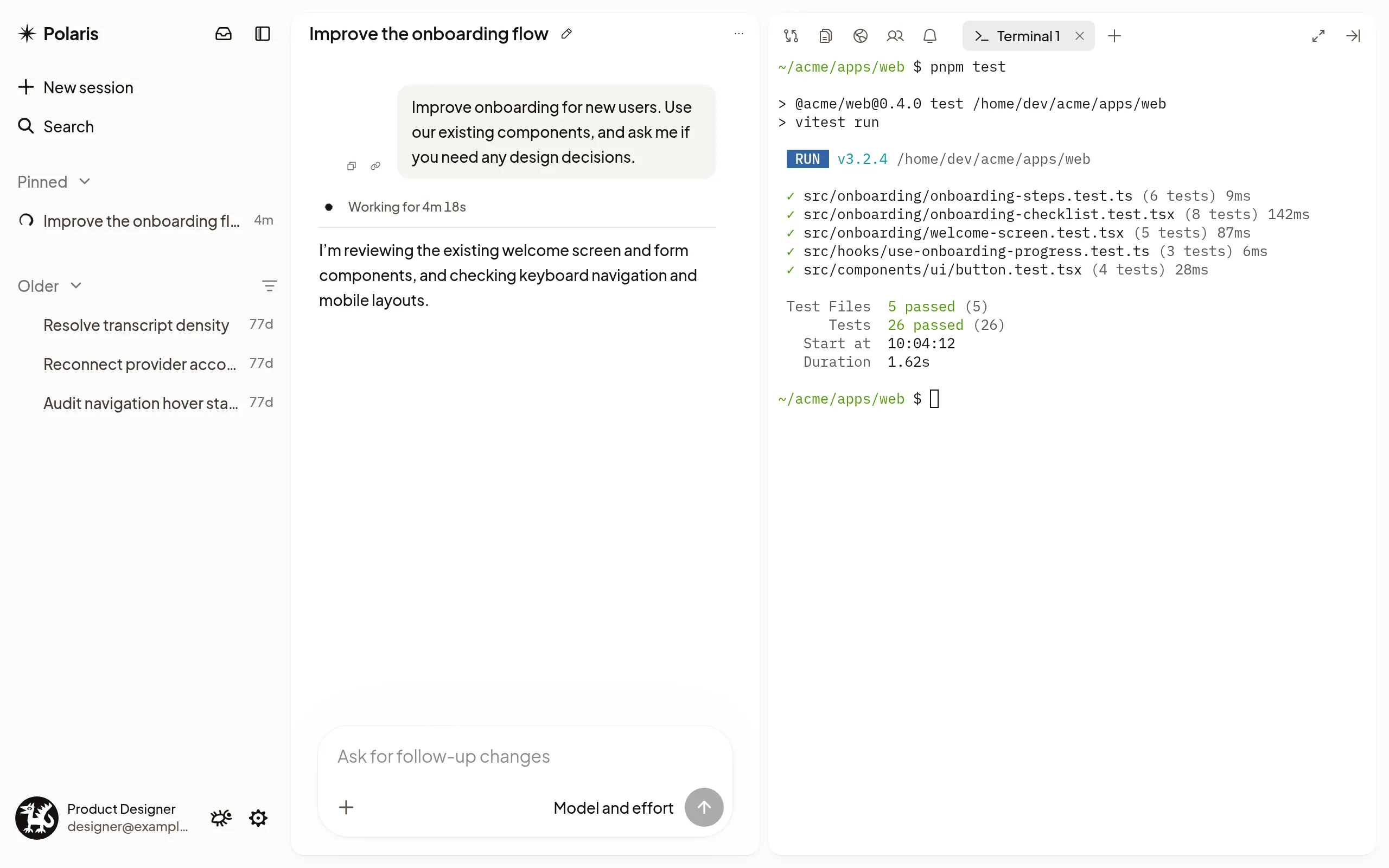
A terminal is your own command line on the agent's Machine, in a tab beside
the Session. It works in the same files and checkout as the agent, so you can
run the tests yourself, look at a running process, install a dependency, edit a
file or dig into a failed setup without asking the agent to do it for you.
## Open a terminal
Select **+** in the right sidebar's tab row, then **New terminal**, or press
Ctrl+Shift+` from anywhere on the page. The
terminal opens as a tab named **Terminal 1**. If the Machine is asleep, it
wakes first.
Press Ctrl+` to jump into the terminal you used last, and
again to go back to where you were. Both shortcuts use Ctrl on a Mac
too.
## Work alongside the agent
- **Same files.** What you change shows up in [Changes](/docs/review-changes), and
the agent sees it the next time it reads the file.
- **Your own space.** The agent doesn't see what you type or what the terminal
prints, and none of it goes into the Session. If it matters, tell the agent
what you did.
- **It doesn't steer the agent.** Typing in a terminal never stops or
redirects the agent. Use the composer for that; see
[Talk to the agent](/docs/talk-to-the-agent).
Ctrl+C stops the running command, or copies when you have
text selected. Links in the output open in a new browser tab.
## Open several
Each **New terminal** opens another tab: **Terminal 2**, **Terminal 3** and so
on. Run a dev server in one and your commands in another. Tabs that don't fit
move under **Open tabs** in the **+** menu on a computer, and into the **+N**
menu at the end of the row on a phone.
Terminals keep running on the Machine when you reload the page or switch
devices. Open the Session again and each one comes back with its screen and its
commands still running. Only one device types into a terminal at a time; typing
on another device takes over.
To close a terminal, select its close button and confirm **Close terminal**.
Anything still running in it stops.
On a phone, a row of keys under the terminal adds the ones a phone keyboard
lacks, such as **Esc**, **Tab**, **Ctrl** and the arrows. Tap **Ctrl**, then a
key, to press them together.
## Who can use it
Terminals are for the Machine's current owner. Teammates you
[share the Session](/docs/share-a-session) with don't see them.
A command you leave running can stop when the Machine goes to sleep. For long
jobs, ask the agent to run them instead; see
[Keep a long job running](/docs/machines#keep-a-long-job-running).
## If it doesn't work
- **Machine is asleep:** select **Wake machine**. A terminal you already had
open shows its last screen until the Machine is awake again.
- **Couldn't start a terminal:** select **Try again**.
- **Terminal isn't available yet:** the Machine updates once the agent is idle.
Try again after the agent finishes.
- **These terminals were on the previous Machine:** select **Dismiss**, then
open a new terminal.