---
title: The composer
description: Mention teammates, point the agent at files, Sessions and skills, attach screenshots and logs, quote the transcript, dictate, and pick the model for your next message.
---
The composer at the bottom of every Session carries more than text. Point the
agent at the exact file or Session you mean, bring in a teammate, hand it a skill, attach a
screenshot or a log, quote a line from the transcript, or talk instead of
typing. Use it to give the agent what it needs in one message instead of
describing where to look. For sending, steering and queueing, see
[Talk to the agent](/docs/talk-to-the-agent).
## Point at files and Sessions
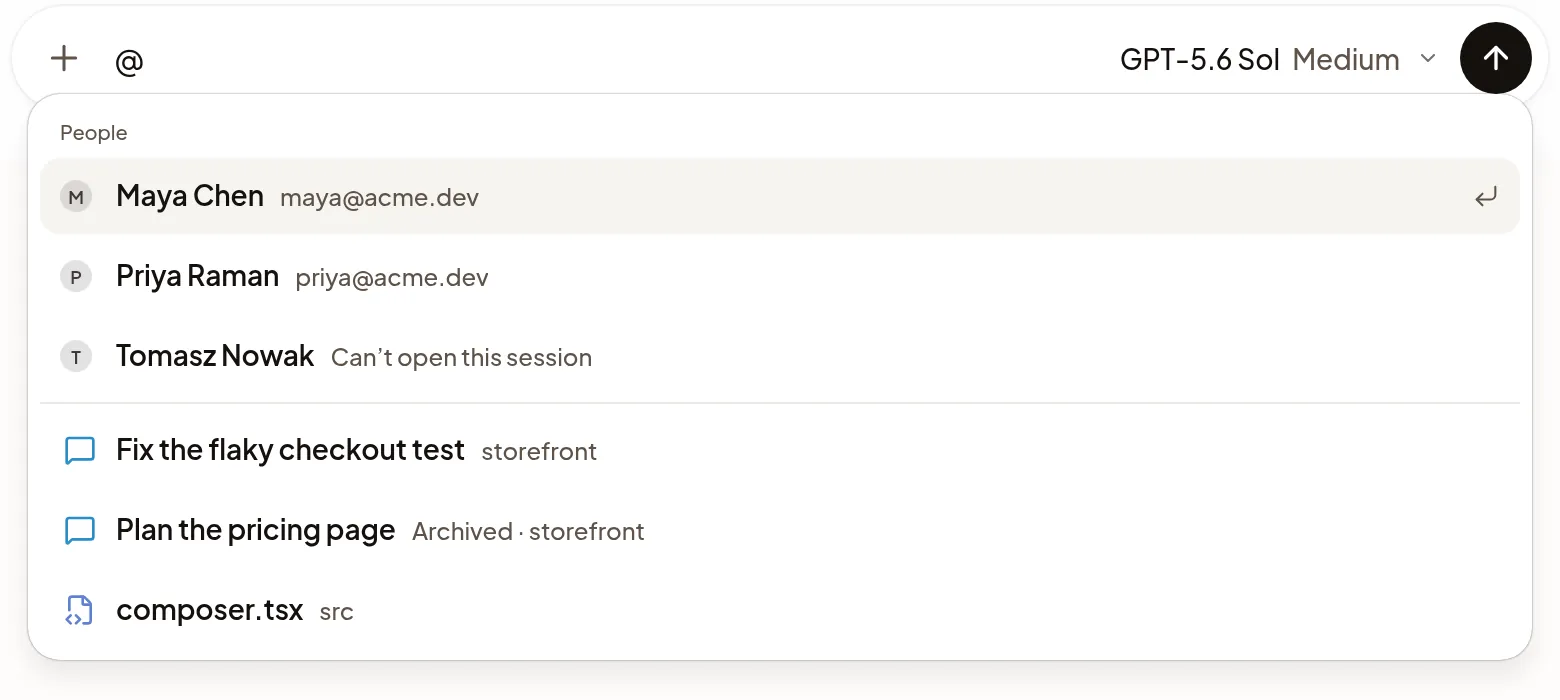
Type `@`, or select **+** → **Mention a file or folder**, and choose from the
list. Keep typing to narrow it, spaces included: `@release notes` finds a
Session or file by those words. The list closes, leaving what you typed as
text, when nothing matches after a space (a single letter waits for more), at
two spaces in a row, or when a space follows the `@` straight away, as in
"meet @ 5pm". Inside quotes,
`@"…"`, spaces never close it. Putting the caret back in an earlier mention
reopens its list, unless you closed it with Esc or it closed by
itself.
- **People** come first, in a Session of a team organization: teammates you
can bring into this Session. See [Mention a teammate](#mention-a-teammate).
- **Sessions** follow: other Sessions you can open in this organization,
such as one a teammate shared with you. Recent ones are listed until you
type; then Polaris finds them by name, Project or organization. The agent
reads that Session; nothing is sent to it.
- **Files and folders** from the repository follow. Choosing one puts its path
in your message. When what you type looks like a path, files come first.
While the Machine isn't ready, the list shows the Machine's last saved
files, as [Files](/docs/files#if-it-doesnt-work) describes.
- **Sessions found by what was said in them**, the way [Search](/docs/search) finds
them, come last, each with the words that matched.
While the list is open, Enter or Tab picks the
highlighted item. If there is nothing to pick, Enter closes the list
instead of sending; press it again to send. When the list could not load,
Enter tries again instead, and Esc closes it.
## Mention a teammate
Type `@` and choose someone under **People**, or type their name or email to
find them. Your message goes to the agent as usual, with their name in it,
such as `@Maya Chen`. The Session joins their list with an **@** in place of
its time until they open it; see [What needs you](/docs/what-needs-you#see-where-youre-mentioned).
- **Someone who can't open the Session yet** shows **Can watch once you send**
in the list. Their name in your message has an eye instead of the **@**;
hover or focus it to read "Tomasz can’t open this session yet. Sending lets
them watch it." Sending shares it with them with **Can watch**. Only the
Session's owner can do this; see [Share a Session](/docs/share-a-session#bring-someone-in-with-a-mention).
- **In someone else's Session**, people who can't open it show **Can’t open
this session** and can't be chosen. Ask the owner to share it with them
first.
## Use a skill
Type `/`, or select **+** → **Use a skill**, to pick one of the agent's skills
or your repository's. Choosing a skill inserts its invocation in your
message. [Project and personal skills](/docs/skills) you add in Settings show
**Project** or **Personal** beside their name.
If the menu says **Project and personal skills need a newer Machine**, that
Machine cannot receive them. The skills already listed remain available.
You can also use these commands:
- `/compact` shrinks a long conversation when the agent runs low on context.
When the agent reports it, a ring beside the model shows how much is used;
hover, focus or tap it for the numbers. With Claude Code, the panel can also
break down the context by category: expand **MCP tools** or **Memory files**
to see their token counts. The breakdown appears once the agent reports it
after a reply; until then the panel shows only the totals. The footer shows
when the reading was taken. Click the ring to keep the panel open, then press
Esc or click outside it to close it.
- `/recap` works in every Session. Text after it gives instructions for the
[conversation recap](/docs/recaps#request-a-recap).
## Attach screenshots, logs and files
Select **+** → **Attach files**, press Ctrl+U
(⌘+U on a Mac), or drag or paste into the composer. The
agent sees images directly, and other files, a `.zip` included, land on its
Machine for it to open. Each image can be up to 25 MiB, and other files up to
1 GiB.
A long paste folds into a chip such as **Pasted text · 120 lines**. Select it
to read what you pasted; the agent gets all of it. A message can carry up to
8 MiB of text; attach anything longer as a file.
## Quote the transcript
To reply to one exact sentence, plan step or line of output, select the text in
any message and choose **Add to chat**. Add a comment if you like, then send.
The agent gets your message followed by each quote and its comment. To comment
on lines of the diff instead, see [Review changes](/docs/review-changes).
## Dictate a message
Select **Dictate**, the microphone, or press
Ctrl+Shift+D
(⌘+Shift+D on a Mac), and talk. When you're
done, choose what happens next:
- Select **Stop and insert**, the square, or press the shortcut again to add
your words where your cursor was. You can keep editing before you send.
- Select **Send**, the up arrow, to add your words and send the message. On
**Start**, the arrow is **Start** and starts the Session.
Press Esc to throw the recording away. A closed tab doesn't lose a
recording. Polaris sends your audio to OpenAI to turn it into text, and only
you can play it back.
If your words can't be turned into text right away, for example while you're
offline, the recording waits above the composer and you can keep writing and
sending. Once it can be turned into text, the words are added to the end of
what's in the composer, even if you've sent a message since; they aren't sent
by themselves. Select **Retry** to try again now.
## Choose the model and take a suggestion
- The controls next to the send button set the model, effort and
**Permissions** for your next message; see
[Choose the agent](/docs/start-a-session#choose-the-agent). Messages already
queued keep the settings they were sent with.
- After the agent replies, the empty composer can suggest a next message.
Press Tab to take it. To stop suggestions, turn off
**Next-message suggestions** in **Settings → General**.
- If you send while scrolled up in the transcript, Polaris scrolls down to
your message. To stay where you are, set **When you send from earlier
messages** to **Stay where I am** in **Settings → General**.
## If it doesn't work
- **Upload failed** on an attachment: select **Retry**.
- **Image is larger than 25 MiB.**: attach a smaller image.
- **Files and folders could not be searched.**: select **Retry** in the list.
- **Conversations could not be searched. Keep typing to try again.**: Sessions
found by name still show; type another letter to search again.
- For anything else, see [Troubleshooting](/docs/troubleshooting).